Merge PDFs Directly from Chrome with This Extension
Searching for a Chrome extension to merge PDFs usually starts with a specific frustration: you already have the PDF open in a tab, but the merge process still forces you to download it, reopen it somewhere else, drag pages around, export a new file, and then possibly upload that file somewhere else. That is three or four steps too many.
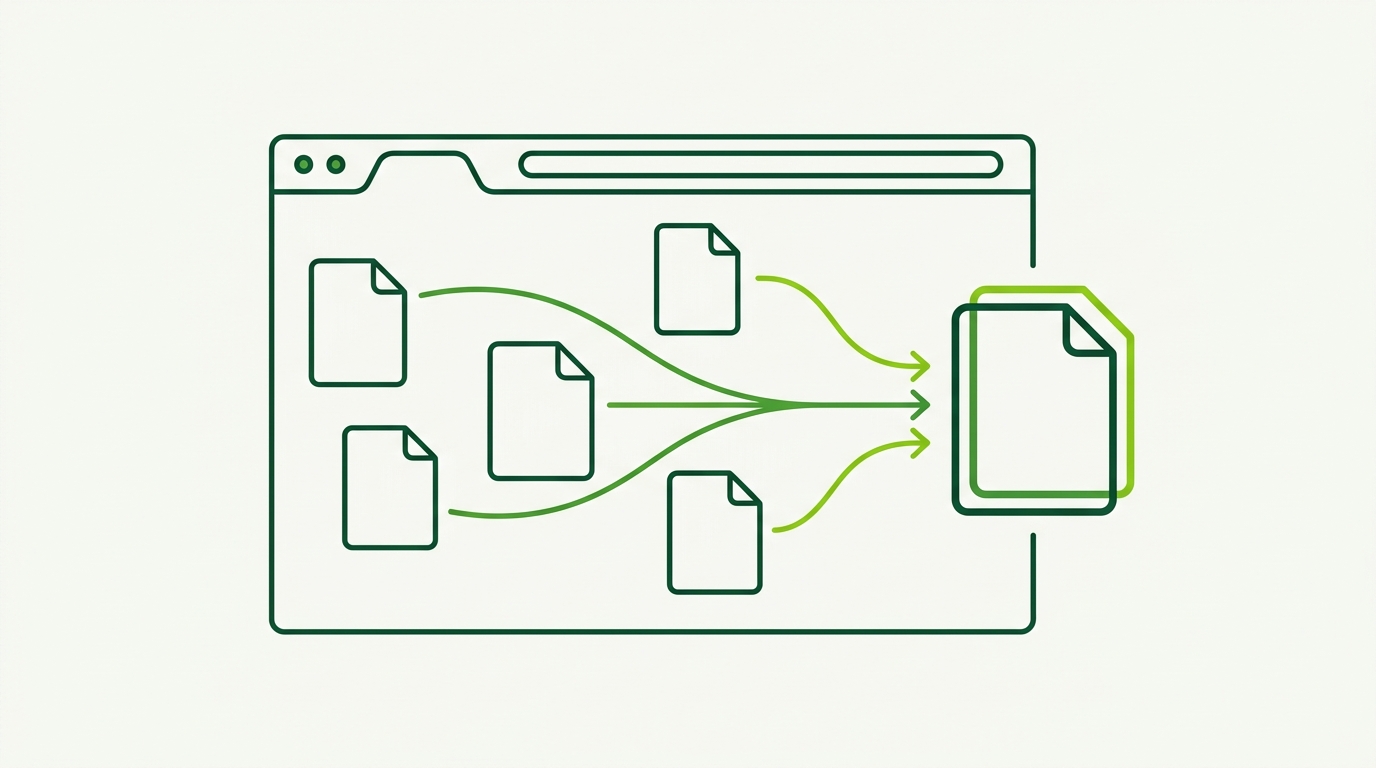
PDFMerge removes those extra steps. The RSJ PDF Merge, Sort & Split extension captures the PDF in the active tab—whether it is a direct .pdf URL or a PDF embedded in the page—and hands it to the PDFMerge web app for merging, sorting, rotating, deleting pages, and splitting. All processing happens locally in the browser, so documents never leave your machine.
This guide covers the one-time setup, the capture-to-export pipeline, failure handling, and best practices for automating PDF merges without leaving Chrome.
One-Time Setup: Install the Extension and Configure the Web App
Start with the RSJ PDF Merge, Sort & Split extension in the Chrome Web Store.
- Click Add to Chrome.
- Pin the extension to the toolbar for one-click access.
- Open any PDF in a Chrome tab.
- Click the extension icon.
That is the entire setup for normal use. The extension captures the active PDF and loads it into the PDFMerge web app. You do not need to manually download, save, re-upload, or create an account to start using the free tier.
By default, the extension open RSJ PDF Merge, Sort & Split from https://pdfmerge.rsj.de. The web app URL is configurable in the extension’s options page. This matters for advanced users and enterprise environments that run a custom or white-label deployment. If your organization gives you a different PDFMerge URL, open the extension options, change the web app URL, and save.
The options page configuration can be represented like this:
# PDFMerge extension options (set through the options page UI)
web_app_url: "https://pdfmerge.rsj.de"
No account is required for basic use. The free tier supports documents up to 100 pages. For larger documents and ZIP-based workflows, Pro removes the page limit and adds more export options.
The Automated Pipeline: Capture, Merge, Sort, Split
Once the extension is installed, the workflow becomes:
- Open the source PDF in Chrome.
- Click the extension icon. The PDF is captured from the active tab and loaded into PDFMerge.
- Add more PDFs. Use the web app to add local files or capture additional PDFs from other tabs.
- Arrange pages. Drag thumbnails in the sidebar to reorder, rotate, or delete individual pages.
- Save or split. Export the result as a single PDF, or split the document into separate PDF files.
The merge step is intentionally visual. The thumbnail sidebar shows every page from every input file, so you can confirm the final order before exporting. Rotating a page or removing an unnecessary page is a direct manipulation in the same sidebar, not a separate dialog.
The split workflow creates separate PDF files from the current document. On the Pro tier, you can download the resulting PDFs as a single ZIP archive. Pro also adds the ability to merge ZIP archives that contain PDFs, which is useful for bulk jobs where a folder of documents has already been compressed.
All of this runs locally in the browser. The extension captures the PDF and passes it to the web app, but the PDF is not uploaded to a server for processing. That keeps the workflow fast and avoids exposing confidential documents to a third party.
Monitoring and Failure Handling: Ensuring Reliable Merges
The most common issues come down to page limits, corrupted source files, or browser memory.
If a document exceeds the free tier’s 100-page limit, upgrade to Pro for unlimited pages. If a source PDF is corrupted or does not render correctly in Chrome, PDFMerge may not be able to process it cleanly. In that case, reopen or re-export the source file before capturing it with the extension.
Because processing is local, failures are usually caused by file size or browser memory pressure. If a large merge stalls or the tab becomes unresponsive, close other tabs, download the current result if possible, and rerun the job in a fresh tab. The extension itself remains installed and ready.
Before saving, use the built-in preview to verify the result:
Pre-save verification:
1. Page order matches the source documents.
2. Rotated pages appear upright.
3. Removed pages are absent.
4. Output is set to single PDF or separate PDFs as intended.
For a more detailed checking process, see How to Verify PDF Pages Merged Correctly: A Checklist.
If your organization changes the PDFMerge web app URL, update the extension options page immediately. The extension will keep capturing PDFs from the active tab, but it needs the correct destination URL for the handoff.
Best Practices for Automating PDF Merges in Chrome
- Pin the extension. Keep it visible in the toolbar so the capture action is always one click away.
- Use the free tier for small merges. Documents under 100 pages are covered; no account is needed.
- Upgrade to Pro for bulk ZIP jobs. If you regularly merge ZIP archives containing PDFs or need to download split results as a ZIP, Pro is the practical choice.
- Use a custom web app URL for enterprise workflows. The configurable URL supports white-label deployments and keeps the extension pointed at the right internal tool.
- Combine PDFMerge with related browser workflows. For example, read How to Split a PDF into Multiple Files in Your Browser when split operations are the main task, or What Is Local PDF Processing and Why Should You Care? if you need to explain the privacy model to your team.
- Check for extension updates. Chrome updates extensions automatically, but reviewing the extension page occasionally helps you catch new options or behavior changes.
FAQ: Chrome Extension to Merge PDFs
Is the PDFMerge Chrome extension free to use?
Yes, the extension itself is free. The web app it connects to offers a free tier that supports merging PDFs up to 100 pages. For unlimited pages and ZIP features, you can upgrade to Pro.
Does the extension upload my PDFs to a server?
No. All PDF processing happens locally in your browser. The extension captures the PDF from the active tab and passes it to the web app, which processes it entirely on your device without uploading to any server.
Can I merge PDFs that are embedded in a web page, not just direct links?
Yes. The extension can capture PDFs that are embedded in a page, such as those displayed in a PDF viewer. Click the extension icon when the PDF is visible, and it will be loaded into the merge tool.
Does the extension work in browsers other than Chrome?
The extension is specifically built for Chrome and available on the Chrome Web Store. However, the web app itself can be used in any modern browser by manually uploading PDFs.
Conclusion: Merge PDFs Without Leaving Chrome
The RSJ PDF Merge, Sort & Split extension turns PDF merging into a capture-and-click workflow. There is no desktop software to open, no manual download-and-upload loop, and no server-side processing of your documents. The free tier covers small jobs, and Pro adds unlimited pages plus ZIP-based merging and export.
Install the extension, pin it, and the next time a PDF merge appears, click one button and finish the job in the browser.
Related posts
- Browser-Based PDF Merger vs Desktop Software: Which Is Better?
- PDFMerge Free vs Pro: Which License Should You Choose?
- Bulk Merge PDFs from ZIP Archives: A Complete Guide
