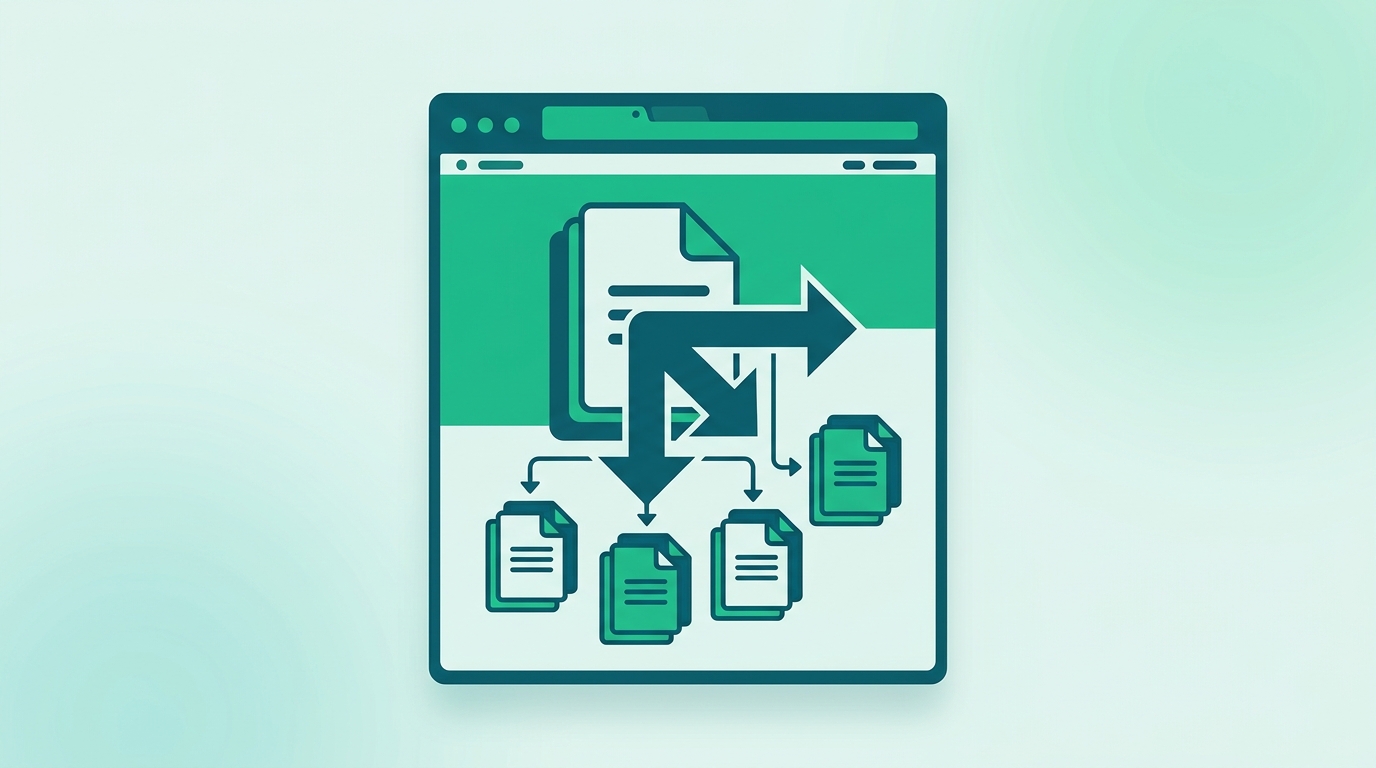
How to Split a PDF into Multiple Files in Your Browser
Large PDFs tend to accumulate pages that belong in separate documents. A 60-page board pack may need to become three committee PDFs; a scanned batch of invoices may need to become one file per invoice. Instead of installing a desktop editor or uploading sensitive documents to a conversion service, you can do the split directly in your browser.
In this walkthrough, you’ll use RSJ PDFMerge to split a single PDF into multiple files by selecting pages in a visual sidebar. By the end, you’ll have downloaded several PDFs—each containing only the pages you intended—and verified that they open correctly.
Prerequisites for Splitting a PDF in Your Browser
You don’t need a desktop PDF suite, an account, or a server-side conversion API. To follow along, you only need:
- A modern web browser with JavaScript enabled: Chrome, Firefox, Edge, or Safari.
- The PDF file you want to split, accessible on your local device.
- Optional: the RSJ PDFMerge Chrome extension for capturing a PDF from the active tab. The extension hands the PDF to the web app for splitting, merging, or sorting.
- Note on limits: the free version supports documents up to 100 pages. The Pro version removes the page limit and adds ZIP export features.
Because RSJ PDFMerge processes files entirely in the browser, the PDF never leaves your device. There is no upload step and no server-side copy of your document.
Step-by-Step: Splitting a PDF into Multiple Files with RSJ PDFMerge
Step 1: Open the web app
Open RSJ PDFMerge in your browser. The tool is a single-page web app, so there is nothing to install or configure before you start.
Step 2: Upload your PDF
Drag and drop your PDF onto the page, or use the file picker to select it from your device. The file is loaded into your current browser tab. You should see a thumbnail sidebar appear with the document’s pages.
Step 3: Select the pages for the first split file
Use the drag-and-drop thumbnail sidebar to select the pages you want in the first output PDF. You can reorder pages, rotate individual pages, or delete pages from the working view as needed. For a split operation, think of the current selection as the source for one output file.
Step 4: Create a new PDF from the selected pages
Use the split action to produce a separate PDF from the pages currently selected in the sidebar. The exact wording depends on the UI version, but it is the action that creates a new document from your current page selection rather than saving the whole working document.
Step 5: Repeat for each additional split file
After creating the first split file, adjust your selection in the sidebar for the next output file. Repeat the selection and split action until every page you need has been assigned to an output document. If you make a mistake, go back to the previous state and re-select the pages before splitting again.
Step 6: Download each split PDF
Download each split PDF individually. If you need the output as a single archive, Pro users can download all split files as a ZIP archive instead of saving each file one by one.
Step 7: Verify each downloaded PDF
Open each downloaded PDF in a PDF viewer and confirm that it contains the intended pages, in the correct order, with no missing or duplicate pages. A quick manual check is usually enough for small splits. For larger jobs, see the verification section below.
Verifying Your Split PDFs
After downloading, confirm that each split file is usable before you send it to someone else or archive it.
- Open each PDF in a viewer and compare its page count against the pages you selected.
- Check for missing pages, especially where one split ends and the next begins.
- Check for duplicated pages if you re-selected a range or repeated an action.
- For Pro ZIP downloads, confirm that the archive contains every expected PDF and that each PDF opens correctly.
If you want a more detailed checklist, see How to Verify PDF Pages Merged Correctly: A Checklist.
If you prefer a quick command-line sanity check after downloading, the following shell snippet lists the split files and reports page counts when pdfinfo is available:
# List downloaded split PDFs and their sizes
ls -lh split-*.pdf

# Optional: check page counts with pdfinfo from Poppler
for f in split-*.pdf; do
  echo "$f — $(pdfinfo "$f" | grep '^Pages' | awk '{print $2}') pages"
done

# If you downloaded a Pro ZIP archive, list its contents
unzip -l split-output.zip
This is an optional local check. It is not required for RSJ PDFMerge to process your files.
Troubleshooting Common Issues When Splitting PDFs in the Browser
Most split jobs work on the first attempt, but here are the issues people run into most often.
The PDF fails to load
Make sure the file is a valid PDF and is not corrupted. A file that was renamed from another format to .pdf will not load properly. You can check the file type locally before retrying:
file input.pdf
# Expected output: input.pdf: PDF document, version 1.7 (or similar)
The browser becomes slow with a large PDF
Large PDFs can put more load on the browser tab. Close other tabs, or move to a machine with more available memory. If you regularly work with documents over 100 pages, the Pro version removes the page limit and is designed for larger files.
Page selection in the thumbnail sidebar is not working
Try clearing the browser cache or switching to a different browser. Some browser extensions can interfere with drag-and-drop or canvas rendering, so temporarily disabling unrelated extensions can help isolate the issue.
Downloaded split files are empty
An empty output usually means no pages were selected at the moment the split action was used. Go back, carefully select at least one page for each split file, and retry.
Privacy or confidentiality concerns
RSJ PDFMerge processes PDFs entirely in your browser. Files are never uploaded to a server, so the document remains on your device during the entire merge, sort, and split workflow. If you want a deeper explanation of why local processing matters, see What Is Local PDF Processing and Why Should You Care?.
FAQ
Can I split a PDF into multiple files without uploading it to a server?
Yes. RSJ PDFMerge processes PDFs entirely in your browser. Your files never leave your device, ensuring privacy and security.
Is there a page limit for splitting PDFs with RSJ PDFMerge?
The free version supports documents up to 100 pages. For larger PDFs, the Pro version removes the page limit and adds ZIP export features.
Can I split a PDF and then merge the parts with other PDFs?
Yes. After splitting, you can use RSJ PDFMerge to merge the resulting PDFs with other files. The tool supports merging multiple PDFs into one document.
Does the Chrome extension help with splitting PDFs from the browser?
The RSJ PDFMerge Chrome extension lets you capture a PDF from the active tab and open it directly in the web app for splitting, merging, or sorting. It streamlines the workflow without manual file downloads.
Conclusion: Split PDFs Quickly and Privately
Splitting a PDF into multiple files shouldn’t require a desktop install, a cloud upload, or a complicated export dialog. With RSJ PDFMerge, you upload locally, select pages in a visual sidebar, and download the resulting PDFs—all in the same browser tab.
The free version is a practical option for occasional use on documents up to 100 pages. If you routinely split larger PDFs or want to download all results as a ZIP archive, the Pro version lifts the page limit and adds ZIP export. For an even faster workflow, the Chrome extension can capture a PDF directly from the active tab and bring it into the web app.
If you want to learn more about the privacy model behind this approach, read What Is Local PDF Processing and Why Should You Care?. If you want to speed up repetitive PDF work in the browser, see How to Automate PDF Merging with a Chrome Extension.
Related posts
- What Is Local PDF Processing and Why Should You Care?
- How to Verify PDF Pages Merged Correctly: A Checklist
- PDFMerge vs Adobe Acrobat: Which PDF Merger Is Right for You?
