How to Sort PDF Pages Online: A Quick Guide
You have a PDF with pages out of order, and you need to sort them quickly without installing software or uploading sensitive documents. By the end of this guide, you will know how to use RSJ PDFMerge to reorder, rotate, and delete pages entirely in your browser.
RSJ PDFMerge is a browser-based PDF tool that processes files locally using JavaScript. Your PDFs are never uploaded to a server. A cloud-based PDF merger often requires you to upload the file to a server, which is convenient but creates a data-handling risk. PdfMerge sits between those two options. It gives you browser-based convenience without the upload step of a typical cloud merger. You do not need to install anything, and you can inspect the network behavior yourself.
The free version supports documents up to 100 pages. The Pro version lifts that limit and adds ZIP-related features.
Prerequisites
Before you start, make sure you have:
- A modern web browser with JavaScript enabled, such as Chrome, Firefox, Edge, or Safari.
- The PDF file you want to sort, stored locally on your device.
- Optional: the RSJ PDFMerge Chrome extension for one-click access from the toolbar. The extension opens RSJ PDF Merge, Sort & Split from
https://pdfmerge.rsj.de. You can install it from the Chrome Web Store. - No account and no installation are required for basic use.
Step-by-Step: Sorting PDF Pages with RSJ PDFMerge
Step 1: Open the RSJ PDFMerge web app
Visit https://pdfmerge.rsj.de in your browser. The app loads directly on the page. You do not need to create an account or enter payment details to test the free tier.
If you prefer to open the app from a terminal on macOS, you can use:
open https://pdfmerge.rsj.de
On Windows, you could run the equivalent from PowerShell, but double-clicking a browser bookmark works just as well.
Step 2: Add your PDF file
Drag and drop your PDF file onto the drop zone. Alternatively, click the drop zone to browse and select the file from your local filesystem.
The file stays on your device. The browser does not upload it to RSJ Software GmbH or any third-party server.
Step 3: Wait for the page thumbnails to appear
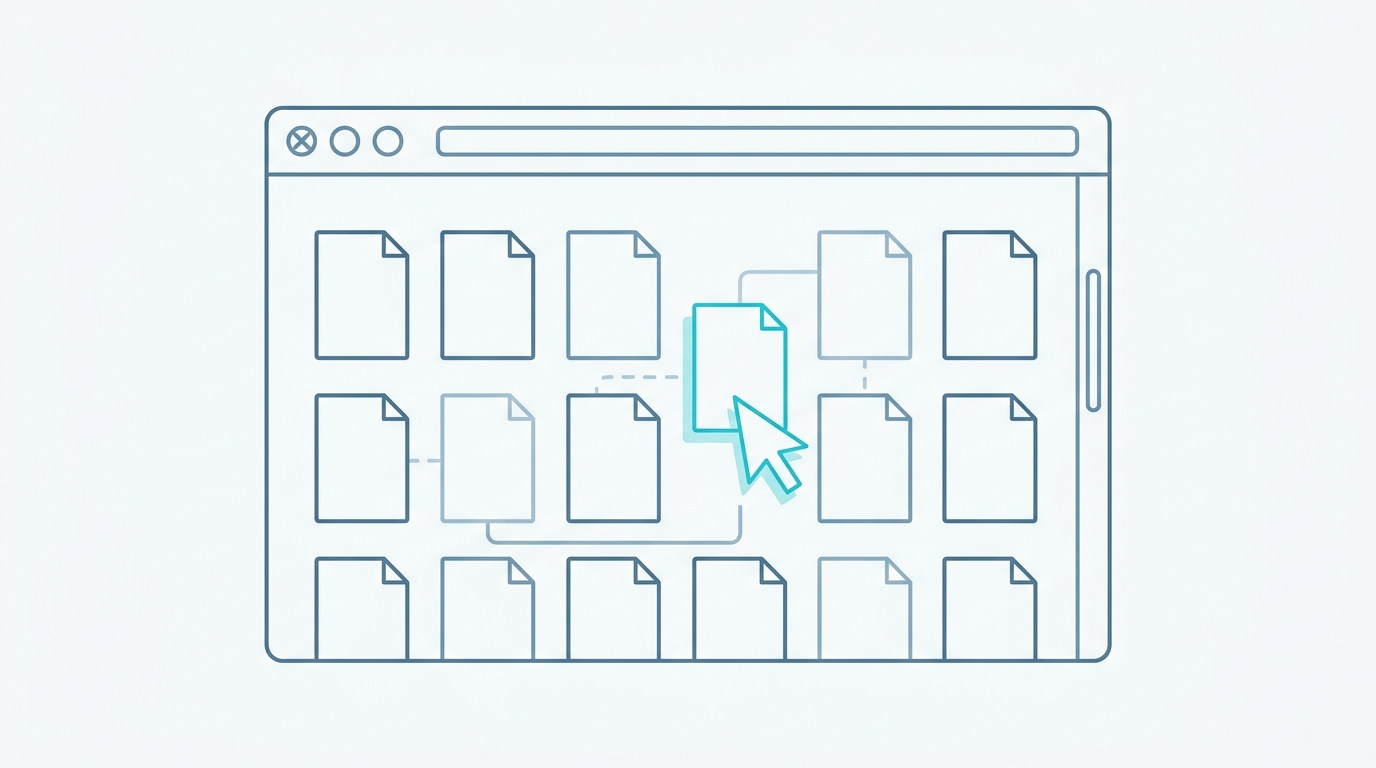
After the PDF loads, thumbnails of all pages appear in the sidebar. Take a moment to review the current page order. This thumbnail view is the main workspace for sorting, rotating, and deleting pages.
Step 4: Reorder, rotate, or delete pages
Drag and drop page thumbnails in the sidebar to reorder them. The new order is reflected immediately in the thumbnail list.
Use the rotate buttons on each thumbnail to change a page from portrait to landscape or vice versa. Use the delete button to remove pages you no longer need.
For example, if page 7 should become page 2, drag the page 7 thumbnail upward and drop it between the current page 1 and page 2. The rest of the pages shift automatically.
Step 5: Insert custom text pages if needed
If you need to add a short note, a title page, or a divider between sections, use the provided option to insert a custom text page. This is useful when you want the final sorted PDF to include explanatory pages without leaving PdfMerge.
Step 6: Generate the sorted PDF
Click the Save button to generate the sorted PDF. PdfMerge applies your page order, rotations, deletions, and any inserted text pages locally in the browser.
There is no upload step. You can keep your network tools open during this step and confirm that no PDF content leaves your browser.
Step 7: Download the resulting PDF
Download the sorted PDF to your device. The file is generated from the pages you arranged in the sidebar.
You can verify the download from a terminal with:
ls -lh ~/Downloads/*.pdf
Replace the path with your browser’s configured download folder if needed.
How to Confirm the Sort Worked
Open the downloaded PDF in any PDF viewer and visually check the page order. The pages should follow the exact sequence you set in the thumbnail sidebar.
Verify the total number of pages. If you deleted three pages and inserted one, the final page count should equal the original count minus two. If the number does not match your expectation, reopen PdfMerge and check the thumbnail list.
Check that rotated pages appear correctly oriented. A page you rotated clockwise should look upright in the final PDF, not sideways or upside down.
If you used the Chrome extension, the sorted PDF is delivered from the web app at https://pdfmerge.rsj.de. Confirm that the download finished and that the file opens normally.
Because PdfMerge processes everything locally, you can open your browser’s DevTools Network panel before saving and confirm that no upload requests occur during the merge or save operation. The only network calls should be for the page assets that render the app itself.
Troubleshooting Common Issues
PDF doesn’t load
Make sure the file is a valid PDF and is not corrupted. Try opening the same file in a standalone PDF viewer. If it opens there, try a different browser in PdfMerge. Some browser extensions or security settings can interfere with local file parsing.
Pages not reordering
Make sure you are dragging the thumbnail to the desired position and dropping it on a visible insertion point. Some browsers require a precise drop zone between thumbnails. If drag and drop feels unreliable, try a small adjustment or use a mouse instead of a trackpad.
Large PDFs feel slow
Processing is local, so performance depends on your device’s CPU and memory. A very large PDF can take longer to render thumbnails and to save. If you are not on the Pro plan, remember that the free tier supports documents up to 100 pages. For very large files, consider splitting the document first and then sorting each part. The article What Is Local PDF Processing and Why Should You Care? explains why local processing behaves this way.
Free tier limit reached
If your PDF exceeds 100 pages, the free version will not process the full document. You can either upgrade to Pro for unlimited pages or split the document into smaller parts, sort each part in PdfMerge, and then merge or store the resulting files separately.
Chrome extension not working
Check that the extension is installed and enabled in Chrome’s extension manager. Also check the extension’s options page and confirm that the web app URL is correctly configured. It should point to https://pdfmerge.rsj.de.
FAQ
Is it safe to sort PDF pages online with RSJ PDFMerge?
Yes. RSJ PDFMerge processes your PDF entirely in your browser using local JavaScript. Your files are never uploaded to any server, so your data remains on your device.
Can I sort pages in a PDF that has more than 100 pages for free?
The free version supports documents up to 100 pages. For larger PDFs, you can either split the document into smaller parts or upgrade to the Pro version, which offers unlimited pages.
Does RSJ PDFMerge allow rotating pages while sorting?
Yes, you can rotate individual pages clockwise or counterclockwise using the rotate buttons on each thumbnail before or after reordering.
Can I use RSJ PDFMerge on a mobile device?
RSJ PDFMerge is a web app that works in any modern mobile browser. However, the drag-and-drop interface is optimized for desktop use. On mobile, you may need to use touch gestures, and precise reordering can be more difficult than on a desktop screen.
Conclusion
Sorting PDF pages online is quick and secure with RSJ PDFMerge, thanks to local processing. You can reorder, rotate, delete, and insert pages without installing desktop software or exposing your document to a server.
Start with the free version at https://pdfmerge.rsj.de and see how the workflow fits your needs. If you routinely work with PDFs over 100 pages or need ZIP features, the Pro plan offers unlimited pages and additional export options.
For a deeper comparison of browser-based and desktop workflows, see the article Browser-Based PDF Merger vs Desktop Software: Which Is Better?. If you want to learn why local processing matters for document privacy, read What Is Local PDF Processing and Why Should You Care?.
Related posts
- How to Merge ZIP Files Containing PDFs
- PDF Merge Tool vs Desktop Software: Which Should You Choose?
- Best PDF Merge Extension for Chrome
