How to Merge ZIP Files Containing PDFs
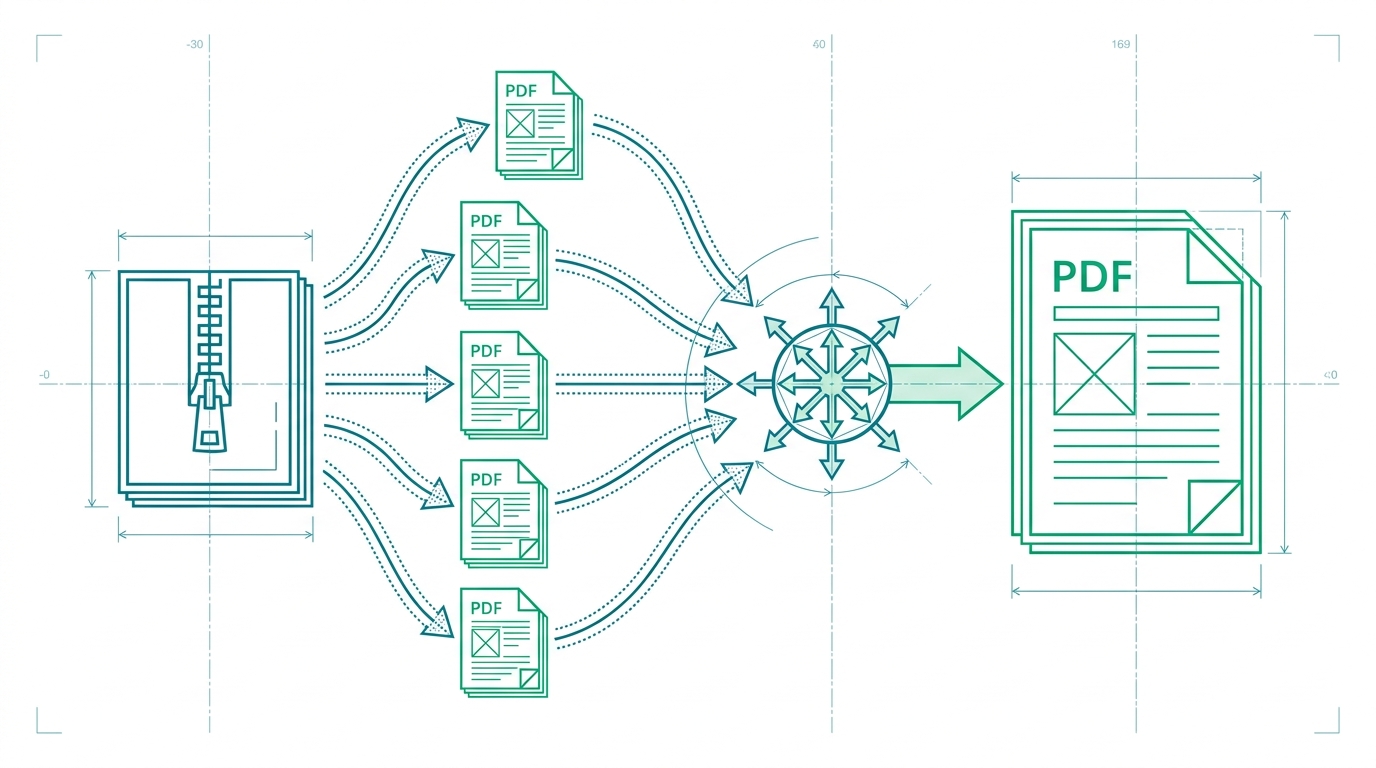
If your workflow still starts with downloading a ZIP archive, extracting its PDFs into a folder, opening each file in a separate tab, and then dragging pages into a merger, you are spending time on steps that should not exist. RSJ PDFMerge removes the extraction step entirely. You can drag a ZIP file containing PDFs straight into the browser, reorder the pages, and produce one clean merged PDF or a ZIP of individual PDFs.
This guide walks through the one-time setup, a repeatable merge pipeline, and the habits that keep ZIP-based PDF merging reliable.
One-Time Setup: Accessing RSJ PDFMerge and Enabling Pro Features
Open RSJ PDFMerge in any modern browser. There is no installer to run and no account required to start a basic merge session. For quick access, you can also install the Chrome extension from the Chrome Web Store. The extension opens RSJ PDF Merge, Sort & Split from https://pdfmerge.rsj.de, so the web app is one toolbar click away.
ZIP merging is a Pro feature. The Basic tier covers merging individual PDFs, viewing, sorting, removing, and splitting. Pro adds two ZIP-specific capabilities:
- Merge ZIP archives containing PDFs
- Download the result as a ZIP of individual PDFs
Current published plans are:
- Basic: €2.99/month, €19.99/year, or €49.99 lifetime
- Pro: €3.99/month, €29.99/year, or €69.99 lifetime
If you regularly receive PDFs packaged as ZIP archives, Pro is the relevant tier. The lifetime license is worth considering if this is an ongoing part of your work.
All PDF and ZIP handling happens locally in the browser. A cloud-based PDF merger often requires you to upload the file to a server, which is convenient but creates a data-handling risk. PdfMerge sits between those two options. It gives you browser-based convenience without the upload step of a typical cloud merger. You do not need to install anything, and you can inspect the network behavior yourself. For more on that model, see What Is Local PDF Processing and Why Should You Care?.
For a deeper comparison of browser-based and desktop workflows, see the article Browser-Based PDF Merger vs Desktop Software: Which Is Better?.
The Automated Pipeline: Merging ZIP Files Containing PDFs
Once Pro is active, the workflow for merging ZIP files containing PDFs becomes a short, repeatable loop. The only manual step left is deciding what belongs in the final document.
A small bit of file organization makes the process smoother. For example, keep inbound ZIP archives in one folder:
mkdir -p merge-queue

for z in ~/Downloads/client-*.zip; do
  mv "$z" merge-queue/
done
This is not required, but it gives you a single place to grab files before dragging them into the browser.
The core pipeline:
- Open RSJ PDFMerge at
https://pdfmerge.rsj.de. - Drag a ZIP file containing PDFs onto the interface. Pro reads the archive locally and loads the PDFs into the thumbnail sidebar. You do not extract the files first.
- Reorder, rotate, or delete pages in the thumbnail sidebar. Drag pages into the order you want the merged PDF to follow.
- Click merge to combine all PDFs from the archive into a single document.
- Download the merged PDF. If your workflow requires separate files, export a ZIP of individual PDFs instead.
If you are already working with a PDF in Chrome, the extension gives you a one-click way to open RSJ PDF Merge, Sort & Split and continue in the same browser workspace.
If your goal is not a merged document but a set of separate PDF files, RSJ PDFMerge can also split the result. See How to Split a PDF into Multiple Files in Your Browser for that workflow.
Monitoring and Failure Handling
Because RSJ PDFMerge processes files locally, you will not see upload timeouts or server-side merge failures. Most issues come from the source files rather than the tool.
If a ZIP file does not load, check whether the archive is corrupted or contains a non-PDF file that the browser cannot render. Unsupported PDF structures can also stop a merge. In those cases, open the browser console and look for red error messages. The console will usually tell you which file caused the problem.
After a merge, verify the output before sending it to a client or colleague. Open the final PDF and scroll through the first few pages, a middle section, and the last page. The order should match the sidebar order you set before merging.
The free version works with documents up to 100 pages. If your archive produces a merged result larger than that, upgrade to Pro to remove the page limit and continue using ZIP import and export.
Best Practices for Automating PDF Merges from ZIP Archives
A browser-based pipeline is faster than manual extraction, but a few habits make it even more predictable.
- Use consistent ZIP naming conventions. Names like
client-report-2026-09.zipare easier to find and verify thanfinal_v2.zip. - Keep a merge queue folder. Move inbound archives into one location before you start. This avoids mixing processed and unprocessed files.
- Reorder pages before merging. The thumbnail sidebar is the easiest place to correct page order, remove duplicates, or rotate scanned pages.
- Use the Chrome extension as a toolbar shortcut. If you already have a PDF open in Chrome, use the extension to open the web app and move the work into RSJ PDFMerge without retyping the URL.
- Keep sensitive documents in the browser. Since processing is local, you avoid the upload step altogether. For regulated documents or confidential contracts, that is a meaningful advantage.
- Consider Enterprise for product integration. If you need to offer white-label PDF merging inside your own website or product, the Enterprise tier is the path to explore.
If you have a scripted pre-merge folder cleanup in your existing tooling, keep it simple. The browser side does not require an API or command-line tool. The product workflow is the primary path: organize the ZIP files, open the web app, drag them in, reorder, merge, download.
FAQ
What is the difference between Basic and Pro when it comes to ZIP files?
Basic does not support ZIP files. Pro allows you to merge ZIP archives containing PDFs and download the result as a ZIP of individual PDFs.
Can I merge ZIP files containing PDFs without uploading them to a server?
Yes. RSJ PDFMerge processes all files locally in your browser. Your PDFs and ZIP files never leave your device.
Is there a page limit when merging ZIP files with RSJ PDFMerge?
The free version supports documents up to 100 pages. Pro removes this limit, allowing unlimited pages.
Can I automate the merging of ZIP files using the Chrome extension?
The Chrome extension opens RSJ PDF Merge, Sort & Split from https://pdfmerge.rsj.de, giving you a toolbar shortcut into the same web app. It does not directly handle ZIP files. For ZIP merging, use the web app with a Pro subscription.
Conclusion: Streamline Your PDF Workflow with RSJ PDFMerge
Merging ZIP files containing PDFs no longer needs to involve a desktop utility, a temporary folder full of extracted files, or an upload to a third-party server. The practical workflow in RSJ PDFMerge is simple: open the browser app, drag the ZIP file in, arrange the pages, merge, and download.
Start with the free version if your documents are under 100 pages. When ZIP merging and unlimited pages become part of your daily routine, Pro adds the exact features you need. The lifetime option is available if you prefer a one-time purchase over a subscription.
Try the workflow with your next ZIP archive at https://pdfmerge.rsj.de.
Related posts
- PDF Merge Tool vs Desktop Software: Which Should You Choose?
- Best PDF Merge Extension for Chrome
- What Is Local PDF Processing and Why Should You Care?
