How to Merge ZIP Archives of PDFs in Your Browser
You have a ZIP archive full of PDFs — invoices, contracts, signed forms, scanned batches — and you need one document instead of thirty. The standard route means unzipping the archive, opening a merge tool, and adding files one at a time until something looks right. The other route means uploading everything to a server you don’t control.
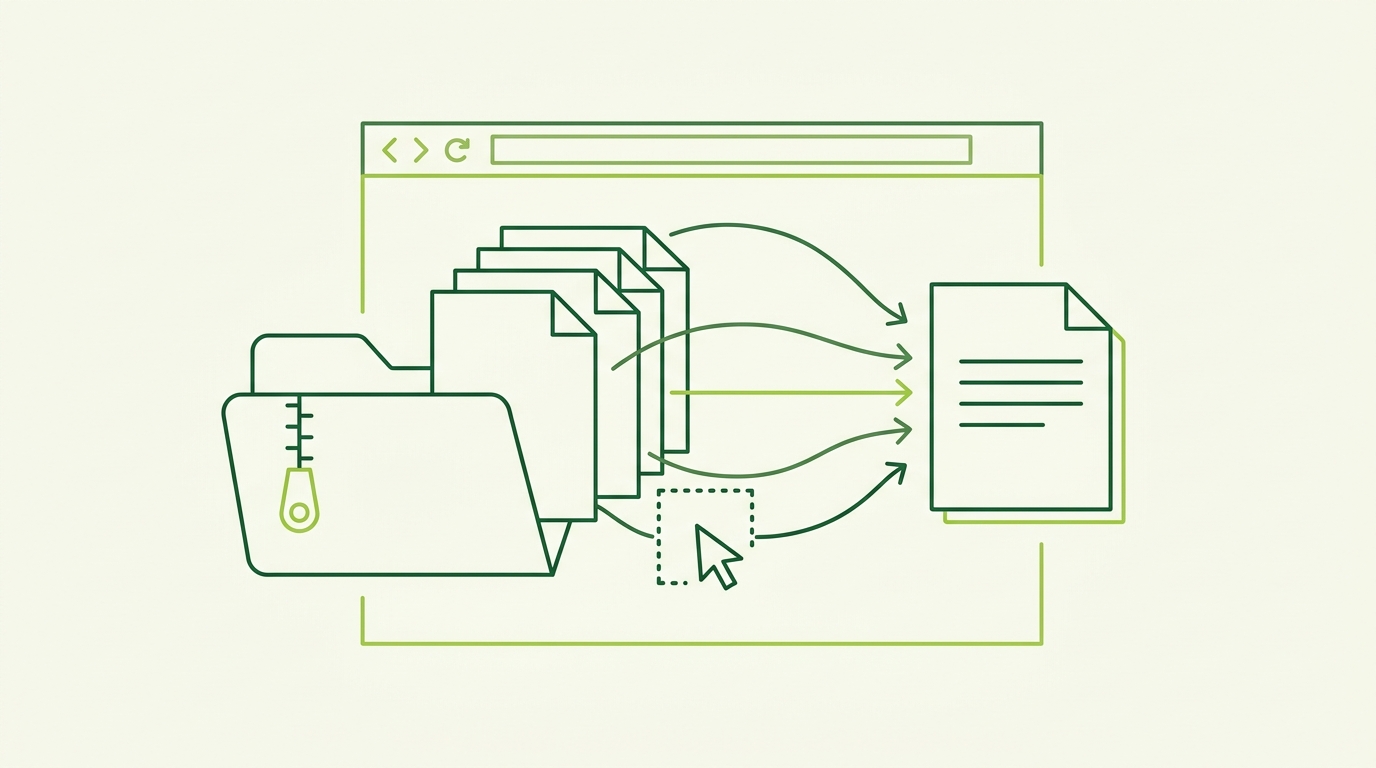
This guide covers a third option. With the Pro tier of PdfMerge, you can load a ZIP archive containing PDFs directly into the web app at https://pdfmerge.rsj.de, review every imported page in a drag-and-drop sidebar, and export a single merged PDF. No extraction to disk. No upload. No installation.
By the end of this walkthrough you’ll have a merged PDF built from an entire archive, in the order you choose.
What You’ll Achieve (and Why It’s Easier Than It Sounds)
The exact task: take a ZIP archive containing multiple PDF files and produce one merged PDF, without manually extracting the archive or sending anything to a server.
This is for anyone who receives batches of PDFs as ZIP attachments or downloads — accounting paperwork, client deliverables, scanned records, per-department reports — and needs to hand them over as a single file.
Two approaches dominate today:
- Extract, then merge. Unzip with your OS tool, then feed the files into a PDF editor one by one. Reliable, but tedious, and easy to get the order wrong when the filenames aren’t sequential.
- Cloud merger. Upload the archive, let a server do the work, download the result. Convenient, but your documents leave your machine in full.
PdfMerge’s Pro tier supports merging ZIP archives containing PDFs directly, so the manual extraction step disappears entirely. Everything is processed locally in the browser: the archive stays on your device, and the free tier already handles documents up to 100 pages, so you can get a feel for the workflow before upgrading anything.
The walkthrough below uses the PdfMerge web app at https://pdfmerge.rsj.de. A companion Chrome extension lets you start the same app from your toolbar.
Prerequisites
Before you start, make sure you have:
- A modern desktop browser — Chrome, Edge, Firefox, or similar. The web app requires no installation.
- Your ZIP archive, saved locally — the file with the PDFs inside it.
- A PdfMerge Pro license. Merging ZIP archives containing PDFs is a Pro feature. The Basic tier covers merging, viewing, sorting, removing, and splitting individual PDFs; the free version supports documents up to 100 pages. Pro lifts the page limits and unlocks the ZIP features.
- Optional: the RSJ PDF Merge, Sort & Split Chrome extension. The extension opens RSJ PDF Merge, Sort & Split from
https://pdfmerge.rsj.de, so you can launch the tool straight from the browser toolbar. The web app URL used by the extension is configurable in its options page. - No upload step. Because files stay on your device, you can keep working offline once the app has loaded.
Step-by-Step: Merging a ZIP Archive of PDFs in PdfMerge
Step 1 — Open the app
Go to https://pdfmerge.rsj.de in your browser. Alternatively, click the extension icon in your toolbar to open RSJ PDF Merge, Sort & Split from https://pdfmerge.rsj.de.
There’s no account creation step in the way of your first merge — the landing page is the tool.
Step 2 — Load your ZIP archive
Drag the ZIP archive onto the drop zone, or use the file picker to select it. PdfMerge reads the PDFs inside the archive directly. You do not need to unzip anything first, and you don’t need to extract to a temporary folder.
If you want to know up front how many PDF entries the archive should contribute, your OS tooling can list them:
unzip -l invoices-q3.zip | grep -i '\.pdf$' | wc -l
# 34
That count is a useful sanity check later, when you verify the merged output. It’s optional — the app does the reading either way.
Step 3 — Review the imported pages
The drag-and-drop thumbnail sidebar now shows every PDF pulled from the archive. Scroll through it and confirm that all the files you expected were picked up.
This is the step where a cloud merger usually leaves you guessing. Here you see the actual pages, in the archive’s order, before anything is combined.
Step 4 — Order and clean up
Now make the document the way you want it:
- Reorder — drag thumbnails up or down to change the sequence of pages across the whole merged document.
- Rotate — flip sideways scans or landscape pages so they read upright.
- Delete — remove cover sheets, blank pages, or anything you don’t want in the final file.
You can also insert custom text pages if you need a separator or a title sheet between sections.
Step 5 — Merge
Trigger the merge. PdfMerge combines everything into a single PDF, and the operation still runs entirely in your browser — the pages you see in the sidebar are the pages being assembled, with no server round-trip for your content.
Step 6 — Export the result
Download the merged document as a single PDF. If you need to keep the files separate but still want them organized, the Pro tier also lets you download a ZIP of individual PDFs as the output instead.
For context on the “hard way”: the traditional route is to extract the archive with your OS tool, then open each PDF in a separate app and merge them one by one, keeping track of order by hand. PdfMerge collapses that into a single managed workflow. And if your task is the opposite one — breaking a document apart rather than combining it — see How to Split a PDF into Multiple Files in Your Browser.
How to Confirm the Merge Worked
Verification here is straightforward, because you have both the source archive and the output:
- Open the downloaded PDF and check that the page count matches the total across all PDFs in the archive.
- Scroll through the document and confirm the order matches the thumbnail order you set in the sidebar.
- Check that the pages you rotated appear upright, and that the pages you deleted are actually gone.
- If you exported a ZIP of individual PDFs (Pro), open the archive and confirm each file is present and readable.
- Because processing is local, you can also confirm that no upload happened by checking that the app worked without a network round-trip for your files.
Troubleshooting Common Issues
The ZIP import option isn’t available. Merging ZIP archives containing PDFs requires the Pro tier. If you don’t see the option, check your license status first — this is by far the most common cause.
Some PDFs are missing after import.
The archive may contain non-PDF files or nested folders. PdfMerge handles the PDFs inside the ZIP, so if a file didn’t appear, confirm it’s actually a PDF and not, say, a scanned image with a .pdf-like name. Listing the archive contents locally is the fastest way to check.
You hit the page limit. The free version supports documents up to 100 pages. Large archives will exceed that quickly; a Pro license lifts the limit.
A large archive feels slow. Browser-based processing depends on your device’s memory and CPU. Close other heavy tabs and try again — a machine with plenty of free RAM handles multi-hundred-page archives noticeably better.
The extension doesn’t open the app. The web app URL used by the extension is configurable in its options page. If the default doesn’t load — for example, on a locked-down network — check that setting.
Why Local Processing Matters for ZIP Workflows
A cloud-based PDF merger often requires you to upload the file to a server, which is convenient but creates a data-handling risk. That risk multiplies when the file is an archive: a single ZIP can contain dozens of separate documents, each with its own names, account numbers, and signatures.
PdfMerge sits between those two options. It gives you browser-based convenience without the upload step of a typical cloud merger. You do not need to install anything, and you can inspect the network behavior yourself if you want to verify that.
If you want the concepts behind this in more detail, What Is Local PDF Processing and Why Should You Care? covers the underlying mechanics, and The Data-Handling Risk of Uploading PDFs to a Cloud Merger walks through the upload risk itself. For a broader comparison of workflows, see Browser-Based PDF Merger vs Desktop Software: Which Is Better?.
FAQ
Can I merge a ZIP archive of PDFs without extracting it first?
Yes. With the Pro tier of RSJ PDFMerge, you can load a ZIP archive containing PDFs directly into the web app at https://pdfmerge.rsj.de. The app reads the PDFs inside the archive, lets you reorder, rotate, and remove pages in the thumbnail sidebar, and merges them into a single document — no manual unzip step required.
Is merging ZIP archives free in PdfMerge?
No — merging ZIP archives containing PDFs is a Pro feature. The Basic tier covers merging, viewing, sorting, removing, and splitting individual PDFs, and the free version supports documents up to 100 pages. Pro lifts the page limits and unlocks ZIP features like merging ZIP archives and downloading a ZIP of the resulting PDFs.
Does PdfMerge upload my ZIP or PDFs to a server?
No. PDF files are processed entirely in the browser and are never uploaded to a server. That means your ZIP archive and its contents stay on your device while you merge, sort, and split. You can inspect the network behavior yourself if you want to confirm this.
Can I use the Chrome extension to start a ZIP merge?
The RSJ PDF Merge, Sort & Split Chrome extension opens RSJ PDF Merge, Sort & Split from https://pdfmerge.rsj.de, so you can launch the app from your browser toolbar. The web app URL used by the extension is configurable in its options page. Once the app is open, you can load your ZIP archive as usual (Pro tier required for ZIP merging).
Conclusion
Merging a ZIP archive of PDFs doesn’t have to mean extracting files to a temp folder, then dragging them into a desktop editor one at a time — and it doesn’t have to mean uploading a folder of sensitive documents to someone else’s server. Load the archive into PdfMerge at https://pdfmerge.rsj.de, confirm the imported pages in the sidebar, arrange them, and export a single PDF. Pro also covers ZIP output if you need the individual files back.
Free handles up to 100 pages, so you can test the workflow on a smaller archive today. Head to https://pdfmerge.rsj.de, drop in a ZIP, and see how many steps you just deleted.
Related posts
- How to Check If a PDF Tool Uploads Your Files
- The Data-Handling Risk of Uploading PDFs to a Cloud Merger
- PDF Merge Tool Pricing: Free vs Paid Page Limits and ZIP
