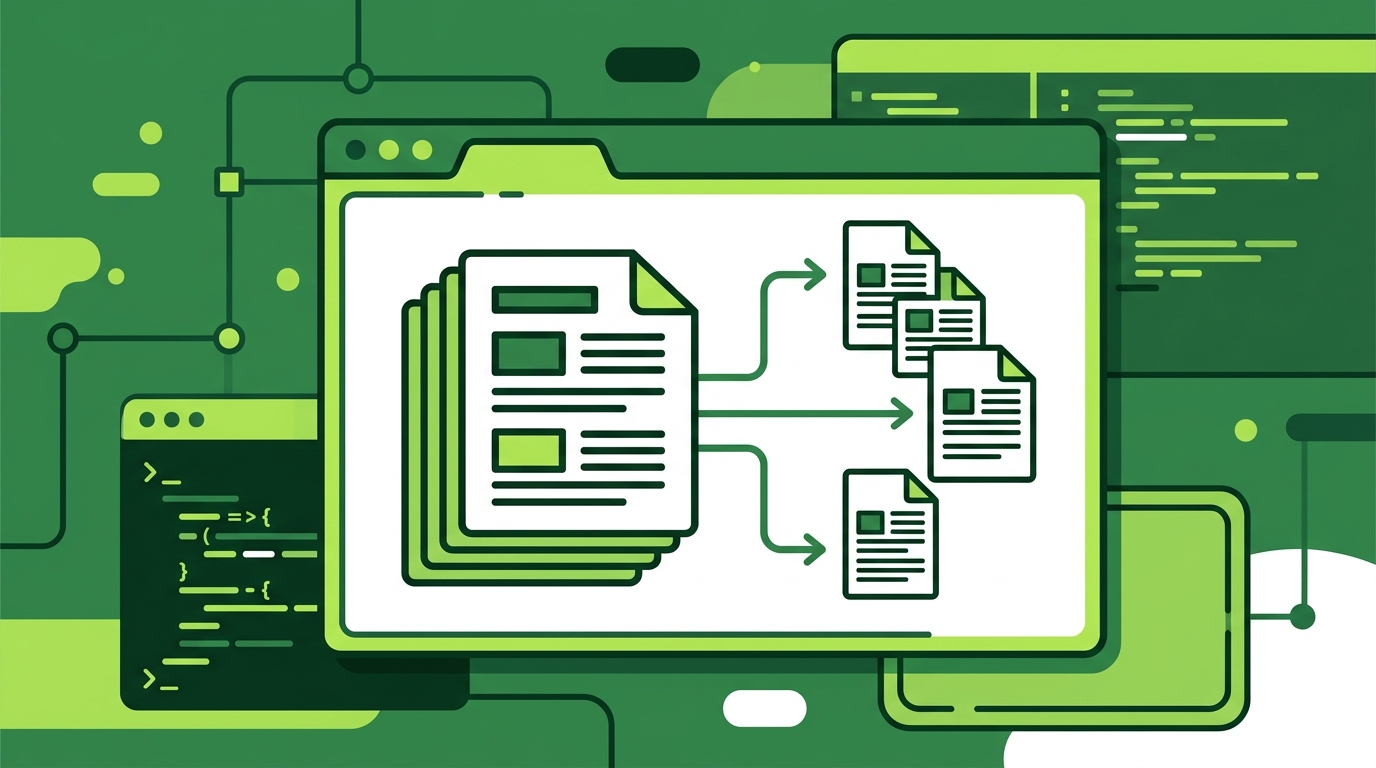
How to Split a PDF into Separate Files Online
You have a multi-page PDF, and you need separate files—one per invoice, one per chapter, or only the pages a client should see. You do not want to install a PDF suite, and you do not want to upload sensitive documents to an unknown server.
This guide walks through splitting a PDF into separate files online with RSJ PDFMerge. You will learn how to load a PDF in your browser, select the pages you need, download the result, and verify that the output is correct. The free version works with documents up to 100 pages and processes everything locally, so your files never leave your device.
If you want more background on what a PDF splitter is before diving in, see What Is a PDF Splitter and How Does It Work?.
Prerequisites for Splitting a PDF Online
You do not need any special software, but a few basics help:
- A modern web browser with JavaScript enabled: Chrome, Firefox, Edge, or Safari.
- The PDF file you want to split, stored locally on your device.
- An internet connection to load the RSJ PDFMerge web app. Processing happens in your browser, but the app itself is served from the web.
- Optional: the RSJ PDFMerge Chrome extension for capturing PDFs that are embedded in a web page. For details, see PDFMerge Chrome Extension Review: Is It Worth It?.
Step-by-Step: Splitting a PDF into Separate Files with RSJ PDFMerge
Step 1: Open the RSJ PDFMerge Web App
Go to the RSJ PDFMerge web app at https://pdfmerge.rsj.de.
The interface is intentionally simple. There is no account sign-up for the free tier, and you do not need to configure anything before working with your first PDF.
Step 2: Load Your PDF
Drag your PDF file onto the page, or click the upload area and browse your files.
Once the file is loaded, RSJ PDFMerge keeps it in your browser. The app does not upload the PDF to a server, which matters if you are splitting contracts, tax documents, or other private material.
Step 3: Review the Thumbnail Sidebar
After loading, the PDF pages appear as thumbnails in a sidebar.
You can drag thumbnails to reorder pages, rotate individual pages, or delete pages you do not need. This is useful before splitting because the order you see in the sidebar is the order that will appear in the output.
Step 4: Select the Pages to Extract
Select the pages you want in the new PDF.
You can do this by clicking individual thumbnails or by using the selection tools in the app. If you are creating multiple separate PDFs from one source document, work with one set of pages at a time.
Step 5: Choose the Split Option
After selecting the pages, choose the Split option.
RSJ PDFMerge creates a new PDF that contains only the selected pages. The original loaded document stays intact in the app, so you can return to it for another selection.
Step 6: Download the Result
Download the resulting PDF.
If you need multiple separate files, repeat the selection and split steps for each set of pages. The free version is fine for this as long as the source document is 100 pages or fewer.
Step 7: Optional: Process Multiple PDFs from a ZIP Archive
If you have a ZIP archive containing multiple PDFs, the Pro version can merge and split them in bulk.
This is useful when you receive a batch of documents in one ZIP and need to extract specific pages from several files without handling them one by one.
Verifying Your Split PDFs
After downloading, confirm that the output is correct.
Open the downloaded PDF in any PDF viewer and check:
- The correct pages are present.
- The page order matches what you selected in the sidebar.
- No pages were duplicated or omitted.
- Each file contains only the intended pages if you created multiple splits.
If you prefer to check from a terminal, you can at least confirm that the files exist and are valid PDFs:
# List the split files after download
ls -lh ~/Downloads/part-*.pdf

# Confirm each file is recognized as a PDF
file ~/Downloads/part-*.pdf
For privacy-sensitive documents, note again that RSJ PDFMerge processes everything locally. No content leaves your browser during loading, splitting, or downloading, so you can verify the result without worrying that your PDF was sent somewhere in between.
Troubleshooting Common Splitting Issues
Issue: The PDF fails to load.
Solution: Make sure the file is a valid, uncorrupted PDF. Open it in another viewer first. If the file is damaged, repair or re-export it before loading it into RSJ PDFMerge.
Issue: Pages are in the wrong order after splitting.
Solution: Use the drag-and-drop thumbnail sidebar to reorder pages before selecting and splitting. The sidebar order determines the output order.
Issue: I need to split a PDF with more than 100 pages.
Solution: The free version supports documents up to 100 pages. For larger documents, upgrade to Pro to lift the limit.
Issue: I want to split multiple PDFs at once.
Solution: Use the Pro version to merge ZIP archives containing PDFs and then split them in bulk.
Issue: The app behaves strangely in my browser.
Solution: Use an up-to-date version of Chrome, Firefox, Edge, or Safari, and make sure JavaScript is enabled.
FAQ: Splitting PDFs Online
Is it safe to split a PDF online with RSJ PDFMerge?
Yes. RSJ PDFMerge processes files entirely in your browser. Your PDFs are never uploaded to a server, so your data remains private and secure.
Can I split a PDF into individual pages for free?
Yes. The free version of RSJ PDFMerge allows you to split PDFs with up to 100 pages. For larger documents, you need the Pro version.
How do I split a PDF that is embedded in a web page?
You can use the RSJ PDFMerge Chrome extension. With one click, it captures the PDF from the active tab and sends it to the web app for splitting.
Can I split multiple PDFs at once?
The Pro version supports merging ZIP archives containing PDFs, allowing you to process multiple files in bulk. You can then split them as needed.
Conclusion: Split PDFs Securely and Easily
RSJ PDFMerge gives you a practical way to split PDFs online without installing software or uploading files. The drag-and-drop thumbnail sidebar makes it easy to see exactly which pages will end up in your output, and the browser-only processing keeps private documents private.
Try it now with your own PDF. The free version handles documents up to 100 pages, which is enough for most invoices, contracts, and reports. If you need unlimited pages and ZIP import/export, the Pro plan is available for €3.99/month, €29.99/year, or €69.99 lifetime.
Related posts
- Top PDF Merge Automation Tools for Streamlined Workflows
- PDFMerge Chrome Extension Review: Is It Worth It?
- What Is a PDF Splitter and How Does It Work?
