How to Reorder Pages in a PDF Online: Drag, Drop, Done
You have a PDF with pages out of order. Maybe it is a scanned report where the pages landed in the wrong sequence, a merged contract that needs a signature page moved up front, or a slide deck with an appendix stuck in the middle. You need to fix the page order quickly without installing desktop software, emailing the file to yourself, or uploading sensitive documents to a random web service.
By the end of this guide, you will know how to reorder pages in a PDF online with RSJ PDF Merge, Sort & Split, a browser-based tool that processes files locally on your device. There is no file upload, no account creation, and no installation. The free version supports documents up to 100 pages, which is enough for most reordering jobs.
RSJ PDF Merge, Sort & Split — also known as PdfMerge — gives you a thumbnail sidebar for dragging pages into the right order, rotating pages, deleting pages, and saving the result. An optional Chrome extension is available if you want to work with a PDF you are already viewing in your browser.
Prerequisites: What You Need Before You Start
Before you begin, make sure you have:
- A modern web browser such as Chrome, Firefox, Edge, or Safari with JavaScript enabled.
- The PDF file you want to reorder saved somewhere you can reach from your file picker, such as Downloads, Documents, or Desktop.
- Optional: the RSJ PDF Merge, Sort & Split Chrome extension if you want to start from a PDF that is open in an active browser tab.
The free version of PdfMerge processes documents up to 100 pages. If your PDF is larger than that, or if you need ZIP-related features, a paid Basic or Pro license is available.
If you want to confirm your source file is present and not empty before opening the app, you can run a quick command in your terminal:
ls -lh scanned-report.pdf
That command only checks the local file on your machine. It does not send anything anywhere.
Step-by-Step: Reorder Pages in Your Browser
These steps use the PdfMerge web app at https://pdfmerge.rsj.de. The workflow is intentionally simple: add a PDF, drag pages, save the result.
Step 1: Open PdfMerge
Go to https://pdfmerge.rsj.de in your browser. The page loads like a normal web app, but the PDF processing happens inside your browser rather than on a remote server.
Step 2: Add Your PDF
Click the Add PDF button, or drag and drop the PDF file from your file manager onto the page. The file loads locally. You should see the document appear in the app with a thumbnail view of its pages.
If you want to confirm that no upload is happening while the file loads, open your browser’s developer tools and check the Network tab:
1. Open DevTools: F12 or Ctrl+Shift+I / Cmd+Option+I
2. Go to the Network tab
3. Select the Fetch/XHR filter
4. Add your PDF and watch the network log
During a local-only operation, you should not see a request to an upload endpoint carrying your PDF.
Step 3: Look at the Thumbnail Sidebar
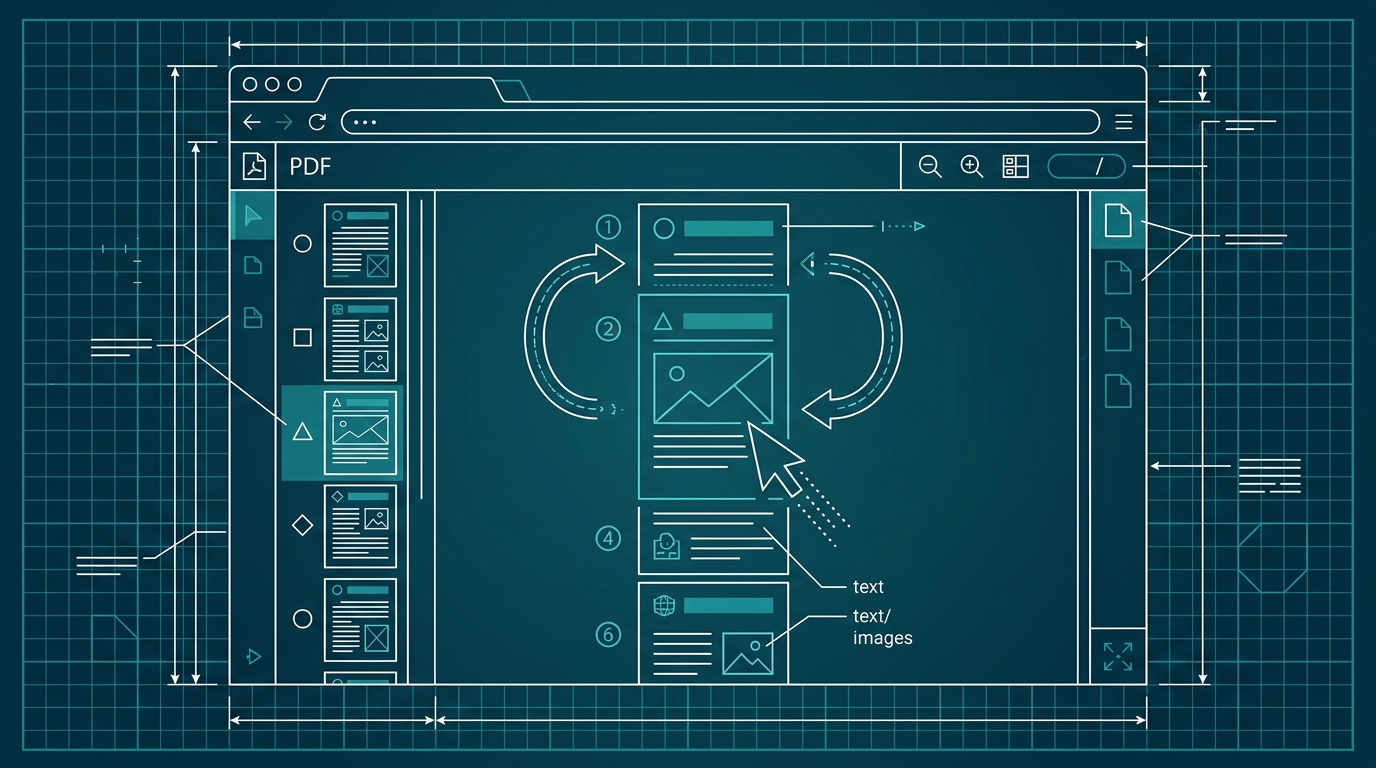
After the PDF loads, each page appears as a thumbnail in the sidebar. The thumbnails are displayed in the current page order. This sidebar is the main control surface for reordering, rotating, and deleting pages.
Step 4: Drag and Drop Thumbnails to Rearrange Pages
Click and hold a thumbnail, move it to the position you want, and release it. The page order updates immediately. You can repeat this as many times as needed.
There is no separate “sort” button to press; the order you see in the sidebar is the order that will be saved.
Step 5: Rotate Pages If Needed
If a page is sideways or upside down, hover over its thumbnail and use the rotate button. You can turn a page 90 degrees clockwise or counterclockwise until the orientation looks correct. This is useful for scanned documents where the scanner fed pages in different directions.
Step 6: Delete Pages You Do Not Need
Select a thumbnail and click the delete or trash icon to remove that page. Deleting a page removes it from the final PDF. You can still adjust the remaining pages after deletion.
Step 7: Save the Reordered PDF
Click the Save or Download button to export the modified PDF to your device. The file is generated locally in your browser, so the download should start without a long round trip to a server.
How to Confirm It Worked: Verification Tips
After downloading the reordered PDF, open it in any PDF viewer such as Adobe Reader, Preview on macOS, or your browser’s built-in PDF viewer. Flip through the pages from start to finish and check that the sequence matches what you intended.
A few things to verify:
- Page order: The first page should be the page you moved to the top, the second page should match the second thumbnail in your sorted order, and so on.
- Page count: The total number of pages should equal the original count minus any pages you deleted.
- Rotation: If you rotated pages, open the final document and confirm the orientation looks correct on screen and in print preview.
- Content integrity: Spot-check a few pages that contain important text or images to make sure nothing was cut off during processing.
Because PdfMerge processes the file locally, you can also verify the safety of the operation by watching the Network tab while you work. If you do not see an upload request carrying the PDF, the file stayed on your device.
How to Split a PDF into Multiple Files in Your Browser
PdfMerge is not limited to reordering. If you need to split the reordered document into separate files, the same web app can handle that step without moving your data through another service.
After you finish reordering, use the split option in PdfMerge to create individual PDF files from the open document. You can save the result as separate PDFs, and Pro users can download those resulting PDFs as a ZIP archive. This is useful when you have a large merged PDF and need to break it back into separate reports, invoices, or chapters after fixing the page order.
Troubleshooting Common Issues
PDF Does Not Load or Thumbnails Do Not Appear
Make sure your browser is up to date and that JavaScript is enabled. If the problem persists, try a different browser. Some corporate browser policies or extensions can interfere with local file processing.
Drag and Drop Is Not Working
Click on the thumbnail once to select it, then try dragging again. If the drag handle feels unresponsive, drag from a different area of the thumbnail, such as the page number or the top edge. A different input device can also help on some laptops.
Downloaded PDF Is Blank or Corrupted
Re-import the original PDF and repeat the steps. If the problem continues, check whether the original PDF is password-protected or corrupted. Password-protected PDFs may need to be unlocked before they can be processed.
Page Limit Reached
The free version supports documents up to 100 pages. If your document is larger, you will need a paid license. Basic and Pro licenses lift the page limit, and Pro also unlocks ZIP import and ZIP export features.
You Want to Reorder a PDF Already Open in Chrome
Install the RSJ PDF Merge, Sort & Split Chrome extension. The extension opens RSJ PDF Merge, Sort & Split from https://pdfmerge.rsj.de, so you can start working with the PDF you were just viewing. The web app URL used by the extension is configurable in its options page.
What Is Local PDF Processing and Why Should You Care?
Local PDF processing means the PDF is manipulated entirely in your browser using JavaScript. The file is not sent to a remote server for merging, sorting, or splitting. When you add a PDF to PdfMerge, it stays on your device while the browser does the work.
A cloud-based PDF merger often requires you to upload the file to a server, which is convenient but creates a data-handling risk. The file may be stored temporarily or permanently, and you have to trust the service provider’s security and retention policies.
PdfMerge sits between those two options. It gives you browser-based convenience without the upload step of a typical cloud merger. You do not need to install anything, and you can inspect the network behavior yourself.
This matters most when your PDF contains sensitive information: bank statements, contracts, medical records, legal documents, or anything you would not want sitting on someone else’s server. Local processing reduces the number of places your data can go.
For a deeper comparison of browser-based and desktop workflows, see the article Browser-Based PDF Merger vs Desktop Software: Which Is Better?.
FAQ
Is it safe to reorder PDF pages online with PdfMerge?
Yes, PdfMerge processes files entirely in your browser. Your PDF is never uploaded to a server, so your data stays on your device. You can verify this by inspecting network activity in your browser’s developer tools — no upload requests are made.
Can I reorder pages in a PDF without installing any software?
Absolutely. PdfMerge is a web app that runs in any modern browser. Just go to https://pdfmerge.rsj.de, add your PDF, drag and drop thumbnails to reorder, and download the result. No installation required.
Is there a page limit for reordering PDFs in the free version?
The free version supports documents with up to 100 pages. If your PDF exceeds that, you’ll need to upgrade to a paid license — Basic or Pro — to process larger files.
Can I reorder pages in a PDF that’s already open in my Chrome browser?
Yes, with the RSJ PDF Merge, Sort & Split Chrome extension. Click the extension icon while viewing a PDF in Chrome, and it will open the PDF in the PdfMerge web app, ready for reordering.
Conclusion
Reordering pages in a PDF does not have to mean downloading a desktop app or uploading your document to a cloud service. RSJ PDF Merge, Sort & Split handles the entire job in your browser: add the PDF, drag thumbnails into order, rotate or delete pages if needed, and save the result locally.
The next time you have a PDF with pages out of order, open https://pdfmerge.rsj.de and try the drag-and-drop workflow. The free version is enough for documents up to 100 pages, and paid licenses are available if you need more capacity or ZIP features.
Related posts
- How to Merge PDFs Locally in Your Browser (No Upload Needed)
- How to Organize PDF Pages Online: Reorder, Rotate, Delete
- How to Merge ZIP Files Containing PDFs: A Step-by-Step Guide
