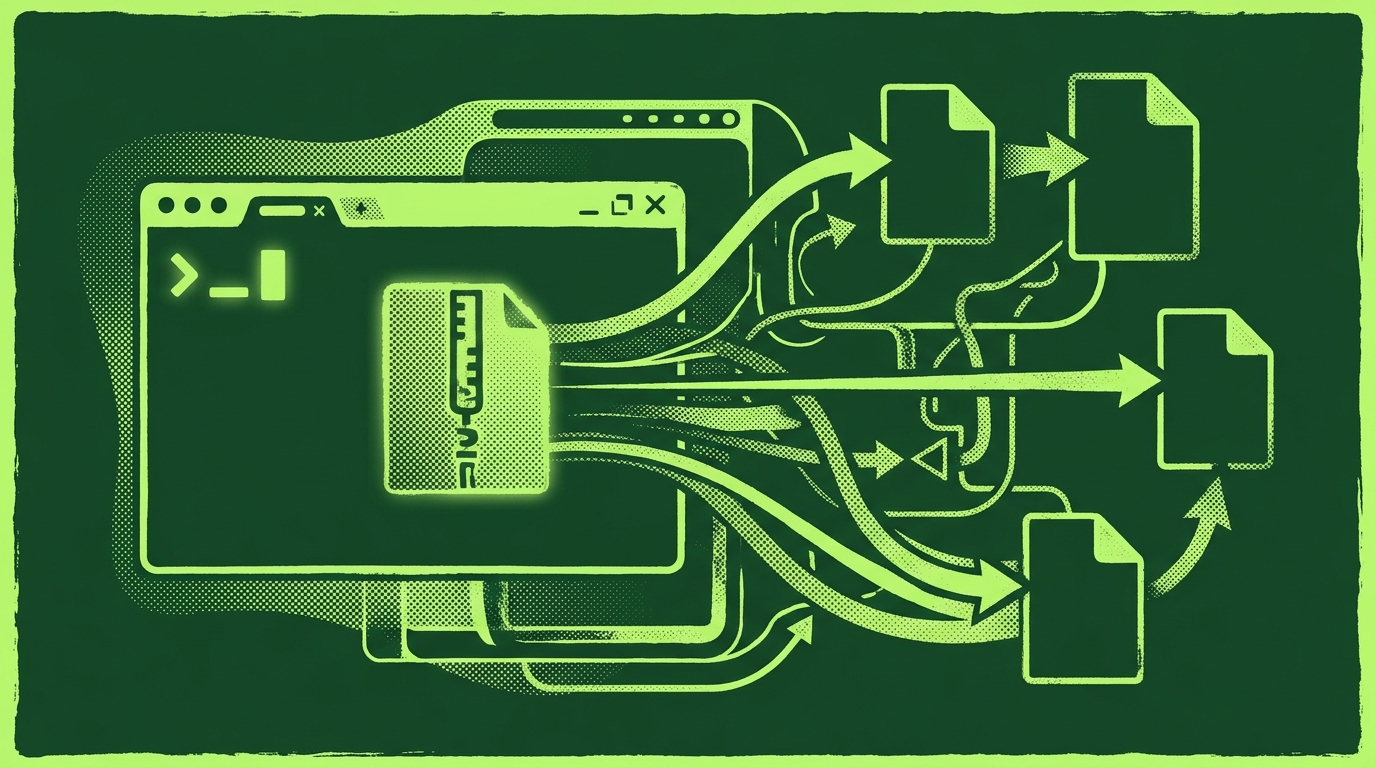
How to Merge ZIP Files Containing PDFs: A Step-by-Step Guide
If you regularly receive PDFs bundled into ZIP archives, you know the drill: download the archive, extract its contents, sort the PDFs into the right order, merge them, and then clean up the temporary folders. That manual extraction step is repetitive, easy to get wrong, and eats time that could go into actual work.
RSJ PDFMerge removes the extraction step entirely. You can merge PDFs inside ZIP files directly in your browser—no unzipping, no temporary folders, no desktop software. This article walks through a one-time setup followed by a streamlined workflow you can repeat every time a ZIP full of PDFs lands in your inbox.
A cloud-based PDF merger often requires you to upload the file to a server, which is convenient but creates a data-handling risk. PdfMerge sits between those two options. It gives you browser-based convenience without the upload step of a typical cloud merger. You do not need to install anything, and you can inspect the network behavior yourself. That is local PDF processing—and it matters if you handle contracts, invoices, reports, or any documents you would rather keep on your own machine.
For a deeper comparison of browser-based and desktop workflows, see the article Browser-Based PDF Merger vs Desktop Software: Which Is Better?.
One-Time Setup: Accessing RSJ PDFMerge and Understanding Requirements
There is nothing to install. Open any modern browser and go to https://pdfmerge.rsj.de. The app loads as a web page, and all processing happens locally in your browser.
Before you start merging ZIP files, you need the Pro tier. ZIP merge is not available in the Basic plan or in the free version. The free version supports merging individual PDFs up to 100 pages, but ZIP archives are a Pro-only feature.
Pro pricing is available as a monthly subscription, a yearly subscription, or a one-time lifetime license:
- Pro monthly: €3.99/month
- Pro yearly: €29.99/year
- Pro lifetime: €69.99 one-time payment
If you only need to merge a few ZIPs occasionally, the monthly plan is a low-commitment option. If you expect to handle ZIP batches regularly, the lifetime license pays for itself quickly.
Optionally, install the Chrome extension from the Chrome Web Store if you want quick access from the browser toolbar. The Chrome extension opens RSJ PDF Merge, Sort & Split from https://pdfmerge.rsj.de by default. You can use it to grab a PDF from the active tab—whether it is a direct PDF link or a PDF embedded in the page—and open it in the web app for further processing. However, ZIP merging itself is done in the web app, not inside the extension popup.
The Automated Pipeline: Merging ZIP Files in Your Browser
Once you have Pro access, the workflow for merging PDFs from ZIP archives takes about a minute.
1. Open the web app
Go to https://pdfmerge.rsj.de and sign in with your Pro license. The app does not require an account for the free tier, but Pro features need an activated license.
2. Add one or more ZIP archives
Click Add files or drag and drop one or more .zip files directly onto the page. You can add multiple ZIP archives at the same time. RSJ PDFMerge automatically opens each ZIP, extracts the PDF files inside, and ignores everything else.
3. Review the extracted PDFs
The PDFs from your ZIP files appear as thumbnails in the sidebar. You can expand each file to view individual pages. This is the moment to spot-check that the right documents came through.
4. Reorder, rotate, or delete pages
Use the drag-and-drop thumbnail sidebar to change page order, rotate pages that are sideways, or delete pages you don’t need. The same sidebar works for documents merged from individual PDFs or from ZIP archives.
5. Merge everything into one PDF
Click Merge. The app combines all visible pages into a single PDF and prompts you to save it. Because processing happens locally, the output file never leaves your browser until you download it.
6. Split or download as a ZIP (optional)
If you need separate files instead of one combined document, use the split feature to break the merged result back into individual PDFs. With Pro, you can also download the resulting PDFs as a ZIP archive. This is useful when you need to deliver multiple files at once without combining them.
The whole pipeline—ZIP input → automatic extraction → thumbnail review → merge → download—runs locally. No uploads, no server-side processing, no waiting for a remote queue. Large ZIP archives are handled privately on your own hardware.
Monitoring and Failure Handling: Ensuring a Smooth Merge
The most common issue with any merge is missing pages. After you merge, compare the page count of the output PDF with the sum of the source PDFs. You can see the page count of each source PDF in the thumbnail sidebar before merging; the output page count is shown in the download dialog or your PDF reader. If the numbers match and the content reads in order, the merge succeeded.
If a ZIP archive contains non-PDF files, RSJ PDFMerge ignores them. Only PDFs inside the archive are extracted and included. Before merging, skim the sidebar and make sure every PDF you expected is present. If a PDF is missing, check whether the ZIP was corrupted or whether the file had an unusual extension.
Very large ZIP archives can strain browser memory. If the app becomes slow, close other browser tabs or split the work into smaller batches. RSJ PDFMerge does not impose a hard file-size limit, but your device’s available RAM is the real constraint.
If a merge fails, verify two things: first, that the ZIP file is not corrupted—try opening it with your operating system’s built-in archive tool. Second, confirm that your Pro license is active. There is no server-side error log to check because the processing never leaves your browser. Errors are almost always caused by an invalid file format or a local browser constraint.
Best Practices for Merging ZIP Files with PDFs
-
Name ZIP archives consistently. A clear naming convention makes batch merges predictable. For example, use
clientname_project_YYYY-MM-DD.zip. When you drag three or four archives into the app, you can immediately tell which document set they belong to. -
Use the thumbnail sidebar as a visual checklist. Before clicking Merge, scan the page thumbnails from top to bottom. This catches out-of-order pages, upside-down scans, or accidental deletions before they become part of the final PDF.
-
Download as a ZIP when you need separate files. If you later need to distribute individual PDFs rather than one combined file, use the Pro feature to export the results as a ZIP archive. You get the benefits of batch processing without losing file boundaries.
-
Pair the workflow with the Chrome extension for recurring web-based tasks. If you frequently pull PDFs from the same websites and then merge them into a single package, the Chrome extension saves clicks. It can grab a PDF from the current tab and open it in RSJ PDFMerge from
https://pdfmerge.rsj.de. -
Keep your browser up to date. RSJ PDFMerge runs entirely in the browser, so there is no desktop application version to patch. A current version of Chrome, Edge, Firefox, or Safari gives you the best performance and security.
Here is an example of a simple naming convention you can adopt for batches of ZIP archives:
# ZIP archive naming convention for client reports
client: acme-corp
year: 2026
month: 09
batch: 01
filename: acme-corp_2026-09_batch01.zip
This is not a config file for the app—it is just a consistent pattern that makes it easier to track which archives have been merged and which still need attention.
FAQ
Q: Can I merge ZIP files containing PDFs for free?
A: No, merging ZIP files containing PDFs is a Pro feature. The free version supports merging individual PDFs up to 100 pages, but ZIP merge requires a Pro subscription or lifetime license.
Q: Does RSJ PDFMerge upload my ZIP files to a server?
A: No. All processing happens locally in your browser. Your ZIP files and PDFs never leave your device, ensuring privacy and security.
Q: What happens if my ZIP contains non-PDF files?
A: RSJ PDFMerge ignores non-PDF files within the ZIP archive. Only PDF files are extracted and included in the merge process.
Q: Can I split the merged PDF back into individual files?
A: Yes, RSJ PDFMerge offers a split feature. After merging, you can split the document into separate PDFs, and with the Pro tier, download them as a ZIP archive.
Conclusion: Streamline Your PDF Workflow with Local ZIP Merging
Merging PDFs from ZIP files no longer has to mean extracting, organizing, and re-archiving by hand. RSJ PDFMerge handles the entire pipeline in your browser: open the ZIP, extract the PDFs, show you the pages, and merge everything into a single output—all without uploading your files to a server.
The Pro tier is the only requirement for ZIP merging, and the lifetime license at €69.99 is a practical option if you expect to repeat this workflow regularly. For more on keeping your documents private while merging, see Verify PDF Merge Safety: No Uploads, No Data Leaks. If you need to break a completed PDF back into separate files, read How to Split a PDF into Multiple Files in Your Browser.
Visit https://pdfmerge.rsj.de to start merging ZIP files containing PDFs today.
Related posts
- Verify PDF Merge Safety: No Uploads, No Data Leaks
- Understanding PDF Page Count Limits in Free Tools
- Best PDF Tools for Chrome: Merge, Split, and More
