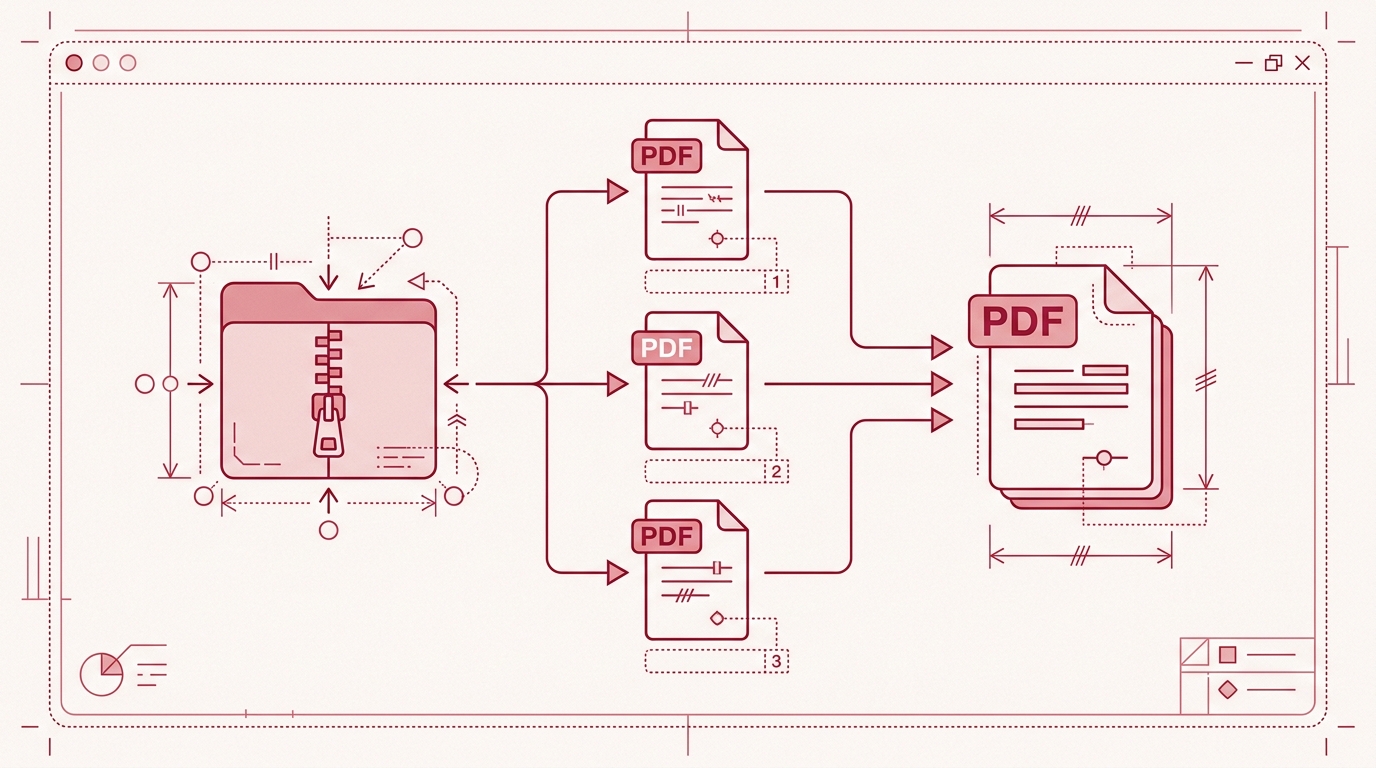
How to Automatically Merge PDFs from a ZIP Archive
If your workflow produces PDFs inside ZIP archives, you know the manual loop: download the archive, extract every PDF into a folder, open a PDF tool, drag files in one at a time, check the order, merge, and hope you did not include an old revision. The extraction step is repetitive and where most mistakes happen.
RSJ PDF Merge, Sort & Split removes that bottleneck by letting you work directly with a ZIP archive in the browser. You upload the ZIP, the PDFs appear in the thumbnail sidebar, and you merge, sort, split, or reorder them without extracting anything to your filesystem. It is not a command-line API, but it automates the most error-prone part of the workflow: handling files one by one outside the context of the archive.
This article covers the one-time setup, a repeatable browser pipeline, failure handling, best practices, and the most common questions.
What Is Local PDF Processing and Why Should You Care?
Before going further, it helps to be clear about what “browser-based” means here.
A cloud-based PDF merger often requires you to upload the file to a server, which is convenient but creates a data-handling risk. Once the file leaves your device, you are trusting the service to store, transmit, and delete it correctly.
A desktop application keeps everything local, but it usually means installing and updating software, and it may not be available on every machine you use.
PdfMerge sits between those two options. It gives you browser-based convenience without the upload step of a typical cloud merger. You do not need to install anything, and you can inspect the network behavior yourself.
With RSJ PDF Merge, Sort & Split, the PDF files are processed entirely in the browser. Your PDFs and ZIP files are never uploaded to a server. That matters when you are handling invoices, contracts, research reports, or any document where data handling is part of the job.
For a deeper comparison of browser-based and desktop workflows, see the article Browser-Based PDF Merger vs Desktop Software: Which Is Better?.
One-Time Setup
There is no installer to run. Open the tool at https://pdfmerge.rsj.de in any modern browser.
If you want to merge PDFs from a ZIP archive, you need the Pro tier. The free version supports merging individual PDFs up to 100 pages, but ZIP archive input is a Pro feature. Pro is available at €3.99/month, €29.99/year, or €69.99 lifetime. The paid licenses lift page limits and unlock ZIP-related import and export features.
Before you open the app, prepare a ZIP archive that contains only the PDF files you want to process. You can create the archive in your operating system, or from a terminal if you already have a set of PDFs ready:
zip -j quarterly-reports.zip reports/*.pdf
The -j flag stores the PDFs without their original folder paths, which keeps the list cleaner when the files appear in the thumbnail sidebar.
The optional Chrome extension can be a useful shortcut if you often start from a PDF you are already viewing. The extension opens RSJ PDF Merge, Sort & Split from https://pdfmerge.rsj.de when you activate it, so you can move the active PDF into the merge workflow without copying it to a desktop folder first.
The Automated Pipeline
Once the ZIP is ready and the Pro tier is active, the repeatable workflow looks like this:
- Open RSJ PDF Merge, Sort & Split in your browser.
- Drag the ZIP archive into the browser window, or use the file picker to select it.
- The tool automatically extracts and lists the PDFs from the ZIP.
- Use the thumbnail sidebar to verify page order. You can drag pages to reorder them, rotate pages, or delete pages that should not be in the final document.
- Click merge to combine the listed PDFs into a single document. All of this happens locally in the browser.
- Download the merged PDF.
If you need separate output files instead of one combined document, Pro also supports downloading a ZIP of the resulting PDFs. That is useful when you want to merge only some files and keep the rest as individual documents.
The key difference from a manual workflow is that the extraction step disappears. You do not need a temporary folder, a separate unzip tool, or a second pass to figure out which file is which. The archive contents become the merge queue.
How to Split a PDF into Multiple Files in Your Browser
Splitting is the inverse operation, and it fits naturally into the same ZIP-based workflow.
If you upload a ZIP and decide you need individual files rather than one merged output, use the split action instead of merge. The tool can produce separate PDF files from a document, and Pro lets you download those files as a ZIP rather than handling many separate downloads.
A typical use case is receiving a batch of scans or departmental reports as one archive. You can open the ZIP, review the PDFs in the thumbnail sidebar, remove empty or duplicate pages, and then split the result into the individual documents you actually need.
Because the split happens in the same local processing environment as the merge, there is no separate upload step for splitting. The files remain in your browser session from start to finish.
Monitoring and Failure Handling
Local processing means there is no server-side log to check. The way to monitor the operation is to watch what the browser sends.
Open your browser’s developer tools before you run a merge and switch to the Network tab. During the merge and download steps, the only network requests should be for the application’s static assets. There should be no upload request carrying PDF or ZIP contents to a remote endpoint. That is the practical signal that the files are staying on your device.
Common failure points include:
-
Corrupted ZIP archives. If the ZIP does not open or the file list is incomplete, verify the archive integrity. On a system with
unzipavailable, this is often enough:unzip -t reports.zip -
Password-protected PDFs. The tool processes PDFs locally, but encrypted PDFs still need to be usable. If a PDF is protected and cannot be read, it will not merge cleanly. Remove the encryption from the source files first, or replace them with unprotected versions.
-
Free-tier page limits. If you are using the free version and the combined document exceeds 100 pages, upgrade to Pro or split the work into smaller batches.
-
Large archives. Very large ZIP files can put pressure on browser memory. If the browser slows down or becomes unresponsive, close other tabs and try smaller ZIP batches.
No data leaves the browser during processing, which reduces the risk of a data leak compared with an upload-based service.
Best Practices
A small amount of preparation makes the ZIP merge workflow much more predictable.
- Use clear naming conventions inside the ZIP. File names usually determine the initial merge order. Prefix names with numbers, dates, or section codes if the order matters.
- Verify order and orientation in the thumbnail sidebar. The sidebar is the place to catch a landscape page that should be portrait, a deleted page, or a file that landed in the wrong position.
- Split very large archives into smaller batches. Even with Pro, processing many large PDFs at once can strain browser memory. Smaller batches are easier to inspect and produce cleaner output.
- Keep the browser and the Chrome extension updated. Security and performance improvements affect local file handling in the browser.
- For teams, consider Enterprise. If this ZIP-to-PDF workflow becomes part of an internal process, RSJ Software GmbH offers a white-label Enterprise option for integration into your own website or product. Contact sales directly for that path.
FAQ
Is ZIP archive merging available in the free version?
No, merging PDFs from a ZIP archive is a Pro feature. The free version supports merging individual PDFs up to 100 pages. Pro unlocks ZIP merging and unlimited pages.
Does the tool upload my PDFs to a server?
No. RSJ PDF Merge, Sort & Split processes all files locally in your browser. Your PDFs never leave your device, which you can verify by inspecting network activity.
Can I automate this process via command line or API?
The tool is designed for browser-based use and does not offer a command-line interface or public API. However, the Chrome extension provides a quick way to capture PDFs from the active tab for merging.
What happens if my ZIP contains non-PDF files?
The tool will ignore non-PDF files and only process the PDFs within the archive. Ensure your ZIP contains valid PDF files for successful merging.
Conclusion
Merging PDFs from a ZIP archive does not need to be a manual extract-drag-drop routine. With RSJ PDF Merge, Sort & Split, the archive itself becomes the working set: upload it, review the PDFs in the sidebar, reorder or rotate what needs fixing, and merge or split the result. Everything is processed locally in the browser, with no uploads and no desktop installation.
If you process ZIP archives regularly, Pro removes the page and ZIP limitations and gives you the most flexibility for exporting individual PDFs as a ZIP. Try PdfMerge now with your next archive and keep the entire workflow inside one browser tab.
Related posts
- Browser-Based PDF Merger vs Desktop Software: Which Is Better?
- How to Reorder Pages in a PDF Online: Drag, Drop, Done
- How to Merge PDFs Locally in Your Browser (No Upload Needed)
