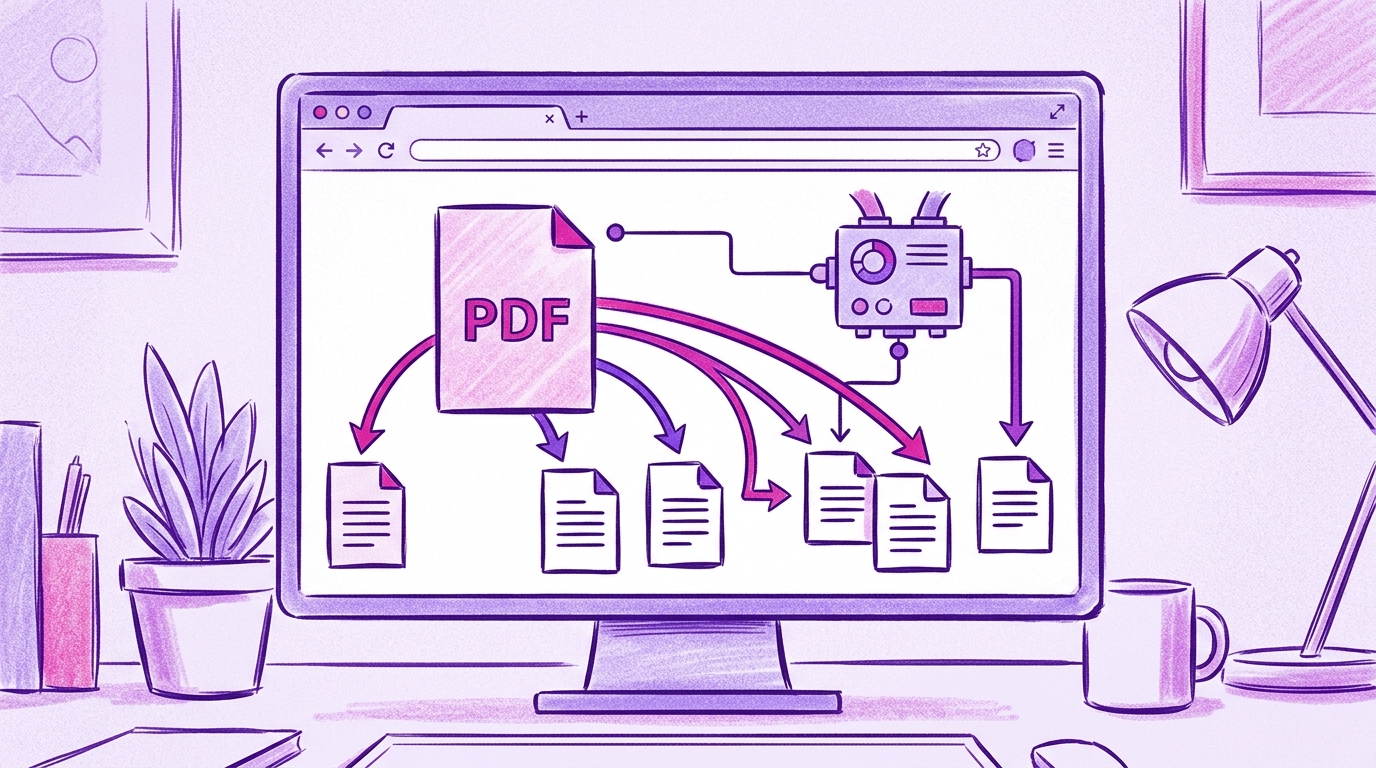
How to Split a PDF into Multiple Files in Your Browser
You have a single PDF, but you need several separate documents. Maybe it is a batch of invoices that should become individual files, a report that needs to be divided by chapter, or a scanned stack where blank pages should be dropped before the split.
In this walkthrough, you will use RSJ PDFMerge to split a PDF into multiple files directly in your browser. The whole process happens locally: no upload to a third-party server, no desktop installation, and no account. You will load a PDF, choose the pages or ranges you want, split the document, and download the resulting files.
What Is Local PDF Processing and Why Should You Care?
A cloud-based PDF merger often requires you to upload the file to a server, which is convenient but creates a data-handling risk. PdfMerge sits between those two options. It gives you browser-based convenience without the upload step of a typical cloud merger. You do not need to install anything, and you can inspect the network behavior yourself.
For a deeper comparison of browser-based and desktop workflows, see the article Browser-Based PDF Merger vs Desktop Software: Which Is Better?.
Prerequisites
Before you start, make sure you have:
- A modern web browser such as Chrome, Firefox, Edge, or Safari.
- The PDF file you want to split. The free version of RSJ PDFMerge supports documents with up to 100 pages.
- Optionally, the RSJ PDFMerge Chrome extension for faster access from the browser toolbar.
- No account, license, or desktop installation is required to start using the free version.
Step-by-Step: Splitting a PDF with RSJ PDFMerge
Step 1: Open RSJ PDFMerge
Go to RSJ PDFMerge in your browser. The tool loads as a web app and processes files locally on your device.
Step 2: Load Your PDF
Drag the PDF file from your file manager and drop it onto the page. You can also use the file picker if you prefer to browse for the file.
After loading, the document appears in the thumbnail sidebar. This sidebar gives you a visual overview of every page.
Step 3: Select Pages in the Thumbnail Sidebar
Use the thumbnail sidebar to choose what you want to split:
- Click a page to select it.
- Shift-click to select a continuous range.
- Drag pages to reorder them if the output order matters.
- Rotate pages that are oriented incorrectly.
- Delete unwanted pages before splitting.
The same drag-and-drop sidebar is used for sorting, rotating, and removing pages, so the page selection step is visual and direct.
Step 4: Choose the Split Mode
In the split options, choose the mode that matches your goal. The common workflows are:
- Split into individual pages — each page becomes its own PDF.
- Split by page range — define a range such as pages 1-3, 4-7, and 8-12.
- Extract selected pages — save only the pages you highlighted as a new PDF.
A simple split plan might look like this:
Source: quarterly-report.pdf (12 pages)
Split by page range:
  Q1.pdf -> pages 1-3
  Q2.pdf -> pages 4-6
  Q3.pdf -> pages 7-9
  Q4.pdf -> pages 10-12
Step 5: Click Split
Once the pages and split mode are set, click the Split button. RSJ PDFMerge processes the split locally in the browser. The source file is not uploaded to a server during this operation.
Step 6: Download the Resulting Files
Download the generated PDFs from your browser.
- Free version: download the individual PDF files as separate downloads.
- Pro version: download the results as a ZIP archive containing the individual PDFs, which is useful when you split a large document into many files.
Step 7: Optional — Use the Chrome Extension
If you installed the RSJ PDFMerge Chrome extension, open a PDF in your browser and click the extension icon. The extension opens RSJ PDF Merge, Sort & Split from https://pdfmerge.rsj.de, and the active PDF is ready for you to split.
The web app URL used by the extension is configurable in its options page, so you can point it at a different deployment if needed.
How to Confirm the Split Worked
After the split, verify the result before you share or archive the files:
- Check that the number of output files matches your intended split plan.
- Open each output PDF and confirm the page content and page order are correct.
- Look for missing or duplicated pages. In a page-range split, page 4 should not appear in two files unless you intentionally included it twice.
- If you are on the Pro tier, open the downloaded ZIP and confirm it contains all expected PDFs.
A quick local check of the number of downloaded PDFs can look like this in a terminal:
ls -1 ~/Downloads/*.pdf | wc -l
Adjust the download path to match your browser settings.
Troubleshooting Common Issues
PDF fails to load
Make sure the file is not corrupted and that it opens in another PDF viewer. If you are on the free version, check that the document has 100 pages or fewer. Larger documents require the Pro version.
Split produces unexpected results
Double-check the selected pages and the split mode. If you meant to split by page ranges but the app created one file per page, return to the split options and choose the page-range mode.
Download issues
Check your browser download settings. Some browsers block multiple automatic downloads, so allow multiple downloads for pdfmerge.rsj.de if prompted. If a ZIP download is missing, confirm that you are using the Pro tier.
Chrome extension not working
Make sure the extension is installed and enabled. Open its options page and confirm the web app URL is set to https://pdfmerge.rsj.de.
FAQ
Q: Is RSJ PDFMerge free to use?
A: Yes, RSJ PDFMerge offers a free version that supports documents up to 100 pages. For unlimited pages and ZIP features, you can upgrade to Pro.
Q: Can I split a PDF without uploading it to a server?
A: Absolutely. RSJ PDFMerge processes PDFs entirely in your browser. Your files never leave your device, ensuring privacy and security.
Q: What is the page limit for the free version?
A: The free version supports PDFs with up to 100 pages. If you need to work with larger documents, the Pro version removes this limit.
Q: Does the Chrome extension work with any PDF viewer?
A: The RSJ PDFMerge Chrome extension captures the PDF in the active tab, whether it’s a direct PDF link or embedded in a page, and opens it in the RSJ PDFMerge web app for splitting.
Conclusion
Splitting a PDF does not have to mean uploading sensitive documents to a cloud service or installing another desktop utility. RSJ PDFMerge gives you a fast, local, drag-and-drop workflow that runs entirely in your browser. Select the pages you want, choose a split mode, and download the results.
If you frequently split larger files or want ZIP export, the Pro tier lifts the page limit and makes multi-file downloads more practical. Open the app, load a PDF, and try a split on your own document.
Related posts
- Merge Multiple PDFs Without Uploading to a Server
- How to Split a PDF into Separate Files Online
- Top PDF Merge Automation Tools for Streamlined Workflows
