
How to Reorder PDF Pages with Drag and Drop
You have a PDF with pages out of order. Maybe it’s a scanned contract where the signature page ended up in the middle, a report assembled from three different departments, or a deck exported in the wrong sequence. Whatever the cause, the fix is the same: move page 12 in front of page 3, and don’t install desktop software or upload a confidential document to someone else’s server just to do it.
This guide walks through how to reorder PDF pages with drag and drop in your browser using PdfMerge. By the end, you’ll have a correctly ordered file saved to your device — and you’ll know how to rotate, delete, and split pages along the way. Reordering is the focus here; the other operations show up only where they intersect with it.
One thing worth stating up front: no uploads are required. The file is processed locally in your browser, so it never leaves your machine. If you want the longer version of why that matters, see Is PDF Merge Safe? How Local Processing Protects Your Files.
What Is Local PDF Processing and Why Should You Care?
A cloud-based PDF merger often requires you to upload the file to a server, which is convenient but creates a data-handling risk. Once your document is on someone else’s infrastructure, you’re trusting their retention policy, their access controls, and their deletion guarantees — for a file you may not legally be allowed to hand over in the first place. The alternative, desktop software, keeps the file local but means an installation, a license, and a workflow that only exists on one machine.
PdfMerge sits between those two options. It gives you browser-based convenience without the upload step of a typical cloud merger. You do not need to install anything, and you can inspect the network behavior yourself.
In practice, “local processing” means the pages you see in the thumbnail sidebar are already in your browser’s memory. Reordering them is a rearrangement of that in-memory document, not a request to a backend. The save step produces a new file on your disk.
Prerequisites: What You Need Before You Start
- A modern browser — Chrome, Firefox, Edge, or Safari. Nothing else is required for the basic workflow.
- The PDF you want to reorder, ideally in a folder you can find again when the download lands.
- No account and no installation for the free tier, which supports documents up to 100 pages.
- A paid license (Basic or Pro) if your document exceeds 100 pages, or if you need to merge ZIP archives containing PDFs and download the result as a ZIP. Basic is €2.99/month, €19.99/year, or €49.99 lifetime; Pro adds the ZIP features at €3.99/month, €29.99/year, or €69.99 lifetime.
Optional: the RSJ PDF Merge, Sort & Split Chrome extension. Install it and one click captures the PDF in the active tab — a direct PDF link or a PDF embedded in the page — and hands it to the web app. The extension opens RSJ PDF Merge, Sort & Split from https://pdfmerge.rsj.de, and that URL is configurable in the extension’s options page if you run the app on a different host:
Extension options → Web app URL
https://pdfmerge.rsj.de
Step-by-Step: How to Reorder PDF Pages with Drag and Drop
Step 1: Open PdfMerge
Navigate to the app in your browser:
https://pdfmerge.rsj.de
If you installed the Chrome extension, click its toolbar icon instead — it opens the same app and, when you’re on a page showing a PDF, can pass that document straight in.
Step 2: Load your PDF
Drag your file onto the drop zone, or click it to open a file browser and select the document. The file stays on your device; it is processed locally in the browser. There’s no progress bar waiting on a server round-trip, because there isn’t one.
Step 3: View page thumbnails
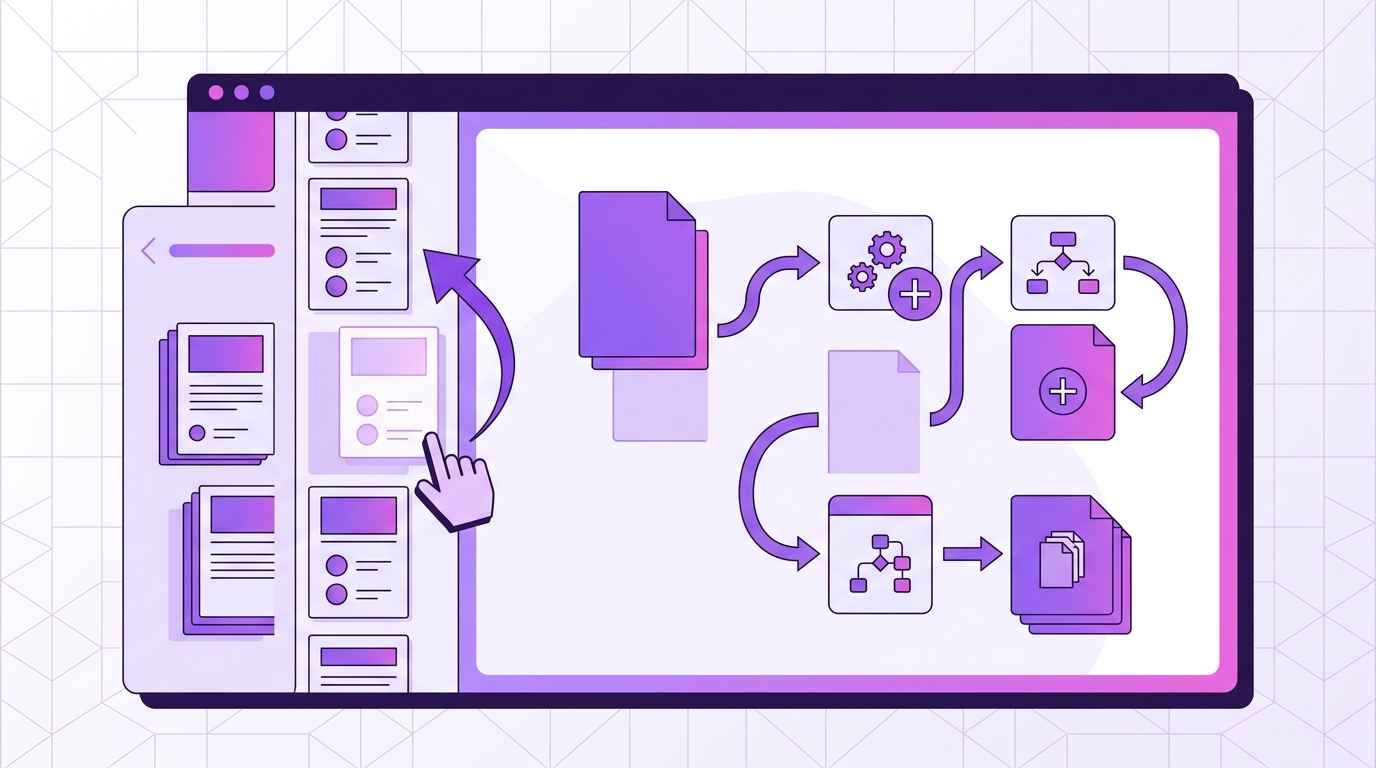
Once the document loads, you’ll see a sidebar with thumbnail previews of every page, in the order they currently appear. This sidebar is the control surface for everything that follows.
Step 4: Drag and drop to reorder
Click and hold a thumbnail, then drag it to the position you want. A visual indicator shows where the page will land. Release to drop, and the surrounding pages shift to make room. Repeat until the sequence is right.
A few habits that make this faster on long documents:
- Work from the last page backwards if you’re reversing a section — you disturb fewer pages that way.
- Zoom in on the thumbnails if the pages look alike (invoices, form pages, near-identical scans).
- Reordering doesn’t renumber anything permanently until you save, so experiment freely. The original file on your disk is untouched.
Step 5: Rotate or delete pages if needed
The same thumbnail sidebar handles two adjacent tasks. Rotate a page if a scan came through sideways — the rotated page keeps its content, only the orientation changes. Delete a page if it’s a duplicate or a blank separator you don’t want in the final document.
Do the deletions before you fine-tune the order where possible: removing a page shifts everything below it, and re-dragging a few thumbnails is easier than mentally tracking which page disappeared.
Step 6: Split the document (optional)
If the reordered pages need to become several files rather than one, the split feature exports separate PDFs. Details are in the next section.
Step 7: Save your result
Save the reordered document as a single PDF, or — with a Pro license — as a ZIP of individual PDFs. The file downloads directly to your device through the browser’s normal download mechanism.
How to Split a PDF into Multiple Files in Your Browser
Splitting is the natural follow-up when a reordered document is really two or three documents that happen to share a file. After arranging the pages, use the split feature to export the ranges you need: the contract without its appendix, the report split by chapter, the merged scans separated by client.
- Single PDF output is available on every tier.
- A ZIP of individual PDFs requires a Pro license.
- Merging ZIP archives containing PDFs also requires Pro, which is useful when your source material arrives as one archive per department or per month.
If your splitting happens on a schedule rather than occasionally, How to Automate Repetitive PDF Document Workflows covers the repetitive-workflow side of this.
How to Confirm the Reorder Worked
Verification here is deliberately low-tech: open the file you just downloaded and read it.
- Open the saved PDF in your browser or your usual PDF viewer.
# macOS
open ~/Downloads/reordered-contract.pdf

# Linux
xdg-open ~/Downloads/reordered-contract.pdf
# Windows (PowerShell)
Start-Process "reordered-contract.pdf"
- Scroll through the pages in order and confirm the sequence matches what you set up in the sidebar.
- Check the page count in your viewer’s toolbar. It should match what you had in the sidebar — unless you intentionally deleted pages, in which case it should match the smaller number.
- Look for anything missing or duplicated, particularly around the pages you moved.
- If you rotated pages, confirm they now appear upright and readable.
You can also confirm the file landed where you expected:
ls -lh ~/Downloads/reordered-contract.pdf
# -rw-r--r--  1 you  staff   2.4M Oct 23 09:14 reordered-contract.pdf
Because PdfMerge processes locally, you can additionally open your browser’s developer tools, switch to the Network tab, and watch what happens during a merge or reorder session — the interesting result is what isn’t there. For a fuller explanation of that mechanism, see What Happens to Your PDF When You Merge It in a Browser?.
Troubleshooting Common Issues
Drag-and-drop isn’t working. Make sure you’re grabbing the thumbnail image itself, not the page number label or a button next to it. If the cursor doesn’t change to a drag cursor, you’re on the wrong element. If it still fails, try a different browser — drag-and-drop implementations differ, and one may behave better with your input device.
The document is too large. The free tier supports up to 100 pages. Beyond that, you’ll need a Basic or Pro license to reorder and save. Note this is a page limit, not a file-size limit, so a 90-page scan at high resolution is still within the free tier.
The PDF won’t open. Password-protected or encrypted PDFs may not be readable by the app. Remove the password first using a tool you trust, then try again.
You made an accidental reorder. Drag the thumbnail back to its original position before saving — the change isn’t committed until you download. There’s no undo button, so for a large mistake, reload the file and start over; that resets the document to its original order.
The file won’t save. Check your browser’s download settings and confirm you have enough disk space. Downloads blocked by a browser policy or a full disk are the two most common causes.
Pages look blurry in the sidebar. That’s a preview rendering, not the exported page. The saved file contains the original page data.
FAQ
Do I need to upload my PDF to a server to reorder pages?
No. PdfMerge processes everything locally in your browser, so your file never leaves your device.
Can I reorder pages in a PDF on my phone or tablet?
Yes, as long as you have a modern mobile browser. The drag-and-drop interface works on touch screens, though it may be easier on a desktop with a mouse and a larger viewport.
Is there a limit to how many pages I can reorder?
The free version supports up to 100 pages. Paid licenses lift that limit.
Can I also merge multiple PDFs and then reorder the combined pages?
Yes. PdfMerge lets you merge files first, then reorder the resulting pages using the same drag-and-drop sidebar. That’s often the faster route when you’re assembling a document from several sources and the order only becomes obvious once everything is in one file.
Conclusion: Reorder PDF Pages Without the Hassle
You can reorder PDF pages with drag and drop directly in your browser using PdfMerge, with no uploads and no installations. Load the file, drag the thumbnails into the sequence you want, rotate or delete anything that doesn’t belong, and save. On the way out, splitting is one more click if the result is really several documents.
The free tier covers most everyday documents up to 100 pages. Paid licenses unlock unlimited pages plus the ZIP features — merging ZIP archives of PDFs and downloading your result as a ZIP of individual files.
For a deeper comparison of browser-based and desktop workflows, see the article Browser-Based PDF Merger vs Desktop Software: Which Is Better?.
Try it now at https://pdfmerge.rsj.de — the sidebar is where the work happens, and the first drag usually takes about ten seconds to get used to.
Related posts
- How to Automate Repetitive PDF Document Workflows
- How Accountants Can Merge and Sort Client PDFs in the Browser
- Is It Worth Paying for a PDF Merger Subscription?
