
How to Automate Repetitive PDF Document Workflows
Every month the same thing happens: reports, statements, and scanned batches land in a folder, and you open them one by one. You drag them into a merger, fix the page order, delete the blank scan someone left at the end, split the result back into per-client files, and save everything with a naming convention you invented at 11 p.m. The documents change. The clicks don’t.
That is the gap this article closes. Learning how to automate PDF document workflows doesn’t require a scripting environment, a server, or a build pipeline. It requires turning a set of repeated decisions into a fixed sequence of steps you can run identically every cycle — in your browser, with the files never leaving your machine.
RSJ PdfMerge is built for exactly that: merge, reorder, rotate, delete, split, and export, driven by a drag-and-drop thumbnail sidebar. The free tier covers documents up to 100 pages, so you can validate the whole workflow before you spend anything.
Below: the one-time setup, the repeatable pipeline, how to monitor output and handle failures, the habits that keep it smooth, and an FAQ.
One-Time Setup: Prepare Your Browser-Based PDF Workflow
Setup takes a few minutes the first time and then never changes again. That’s the point.
1. Open the web app. Open RSJ PDF Merge, Sort & Split from https://pdfmerge.rsj.de. No account and no installation are required for basic use — bookmark it or pin the tab so it’s one click away.
2. Add the Chrome extension (optional, but it removes a step). The companion extension is available in the Chrome Web Store. It lets you open RSJ PDF Merge, Sort & Split from the browser toolbar, and the web app URL it uses is configurable in the extension’s options page.
3. Decide on a tier once, then stop thinking about it. The free version handles documents up to 100 pages. The paid tiers lift that limit:
- Basic — merge, view, sort, remove, split: €2.99/month, €19.99/year, €49.99 lifetime
- Pro — everything in Basic, plus merging ZIP archives containing PDFs and downloading a ZIP of the resulting PDFs: €3.99/month, €29.99/year, €69.99 lifetime
- Enterprise — white-label integration into your own website or product
If your batches are consistently under 100 pages, stay on free. If you regularly merge a whole month of statements into one document, you’ll know within a week.
4. Fix your folder layout so the same steps always apply. Automation fails when the inputs move around. Pick a structure and keep it:
mkdir -p inbox/2026-10 outbox/2026-10 archive/2026-10
inbox/2026-10/      # raw sources, untouched
  acme-2026-09.pdf
  globex-2026-09.pdf
outbox/2026-10/     # merged and split results
archive/2026-10/    # originals, moved after a successful run
5. Confirm the safety model you’re relying on. A cloud-based PDF merger often requires you to upload the file to a server, which is convenient but creates a data-handling risk. PdfMerge sits between those two options. It gives you browser-based convenience without the upload step of a typical cloud merger. You do not need to install anything, and you can inspect the network behavior yourself.
For the background, see What Is Local PDF Processing and Why Should You Care? and Is PDF Merge Safe? How Local Processing Protects Your Files. For a deeper comparison of browser-based and desktop workflows, see the article Browser-Based PDF Merger vs Desktop Software: Which Is Better?.
The Automated Pipeline: Merge, Sort, and Split in a Repeatable Sequence
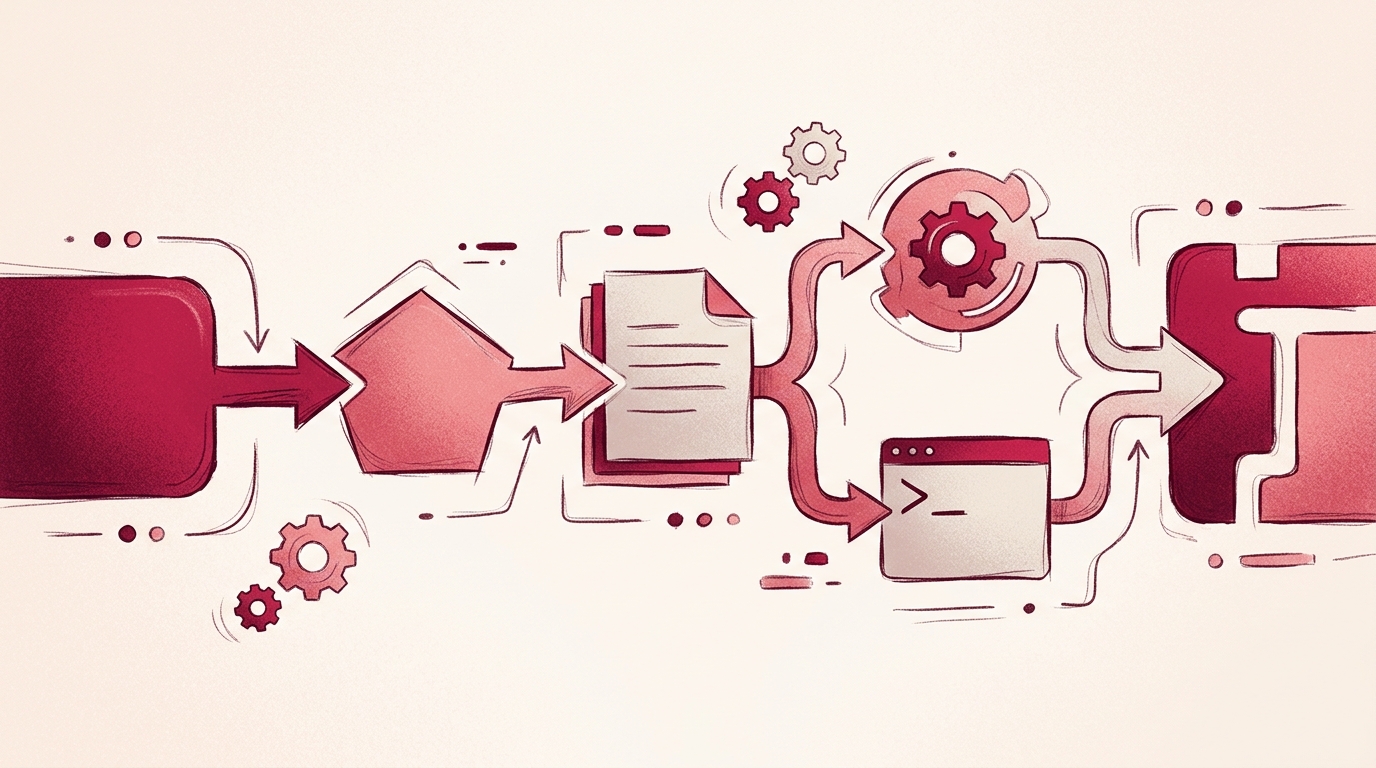
The pipeline is five steps, always in the same order. Once you’ve run it twice, you stop reading the interface and start executing it.
- Collect — get all source PDFs into the app in one drop.
- Merge — combine them into a single working document.
- Sort — reorder, rotate, and delete pages in the thumbnail sidebar.
- Insert (optional) — add custom text pages as separators or cover sheets.
- Export — save one merged PDF, or a ZIP of individual PDFs.
Step 2–3: Merge, then fix the order visually
Drop the files onto the app and merge them into one document. The drag-and-drop thumbnail sidebar is where the repetitive work actually happens — and where automation pays off, because the corrections are usually the same every cycle:
- Drag a statement that landed in the wrong position to the front
- Rotate a scanned page that came through sideways
- Delete the blank trailing page your scanner added
- Delete the duplicate cover sheet a client sent twice
These are the actions you’d otherwise repeat by hand for every batch. Here they’re a fixed sequence you can execute without thinking.
Step 4: Insert separator pages when the merged document needs structure
If the merged file goes to someone else, a custom text page before each section costs one action and saves a phone call. It’s optional, but it’s the difference between “one merged PDF” and “a document someone can navigate.”
Step 5: Split, or export a ZIP
Splitting a document into separate PDF files is the inverse move and usually the last step of the cycle: merge the batch for archiving, split it for distribution. The mechanics of splitting deserve their own walkthrough — see How to Split a PDF into Multiple Files in Your Browser for the split-specific steps.
If you’re on Pro, two ZIP features matter for automation:
- Merge ZIP archives containing PDFs — drop an archive straight in without unpacking it first
- Download a ZIP of the resulting PDFs — get every split output as one download instead of twenty
That second one is the difference between a workflow and a folder full of browser downloads.
The hard way, for contrast
You could assemble this with command-line tools instead:
# The hard way: one line per batch, and a rewrite every time the inputs change
qpdf --empty --pages inbox/2026-10/*.pdf 1-z -- outbox/2026-10/packet.pdf
It works, until the page ranges change, a file is password-protected, or a page needs rotating. Then you’re editing a script instead of dragging a thumbnail. The browser workflow is one sequence of drag-and-drop actions you repeat identically each cycle — no runtime, no dependencies.
Monitoring and Failure Handling in Your PDF Workflow
Because processing happens in your browser, there’s no remote job to poll and no queue status to check. Monitoring means inspecting the output before you commit to it:
- Scan the thumbnail sidebar before exporting. Page count and page order are visible there — that’s your verification step, and it takes seconds.
- Check the first page of each section. If separator pages or cover sheets mark the boundaries, a quick scroll confirms nothing merged into the wrong place.
- For split outputs, count the results. The number of separate PDFs should match the number of documents you expected to extract.
When something goes wrong, it’s almost always one of four things:
Password-protected PDFs. Unlock them in your PDF reader first, then bring them into the workflow. A file that can’t be rendered can’t be reordered.
Corrupted files or pages that don’t render. Re-save the source from the application that produced it, or split the batch in half and process each half. Halving is the fastest way to isolate the one bad file in a stack of thirty.
Hitting the 100-page limit. That’s the free-tier ceiling, not a bug. If you cross it regularly, Basic or Pro removes the limit — and Pro adds the ZIP handling described above.
A batch you need to re-run. Keep a simple log so you don’t redo work you’ve already done. A YAML file next to the batch is enough:
# archive/2026-10/run-log.yaml
batch: 2026-10-client-packets
run_at: 2026-10-22
sources:
  - inbox/2026-10/acme-2026-09.pdf
  - inbox/2026-10/globex-2026-09.pdf
status: exported          # exported | failed | partial
notes: "globex scan had two blank pages, removed manually"
When a run fails halfway, the log tells you which sources were already folded in — you re-run only what’s missing.
Because the file never leaves your machine, failures are local and reproducible: the same input produces the same problem, and you can fix it at the source.
Best Practices for Smooth, Repeatable PDF Automation
Standardize naming before you standardize anything else. 2026-10_acme_statement.pdf sorts predictably; statement (final) v2.pdf doesn’t. A deterministic input order means the same drag-and-drop sequence works every time.
Keep the folder layout stable. Same inbox, same outbox, same archive — one per period. When the paths change, you rebuild the workflow from memory instead of muscle memory.
Use the Chrome extension for capture. If a PDF arrives as a link or embedded in a page, open RSJ PDF Merge, Sort & Split from the browser toolbar and hand the file straight to the app instead of downloading it to a folder and re-uploading it.
Batch similar tasks together. Do all your merges first, then all your splits, then all your exports. Switching between modes is where mistakes and re-work live.
Test on a small sample first. Run three files through the full pipeline before you point it at three hundred. If your page order or separator logic is wrong, you want to find out on a sample, not on a finished batch.
Keep the browser updated and the extension pointing at the right URL. If your organization hosts its own instance, re-check the extension’s options page after any change. One misconfigured URL looks exactly like a broken workflow.
FAQ
Do I need to install software to automate PDF merging and splitting?
No. RSJ PdfMerge is a browser-based web app. You can open it at https://pdfmerge.rsj.de and start merging, sorting, and splitting PDFs without installing anything. A companion Chrome extension is available if you want to launch it from the browser toolbar.
Can I automate PDF workflows without uploading files to a server?
Yes. PdfMerge processes PDF files entirely in your browser, so they are never uploaded to a server. This makes it a good fit for workflows where data-handling risk matters.
What’s the difference between the free and paid versions for automation?
The free version supports documents up to 100 pages. Paid tiers (Basic and Pro) lift that limit; Pro also adds merging ZIP archives containing PDFs and downloading a ZIP of the resulting PDFs.
How does the Chrome extension fit into an automated workflow?
The Chrome extension lets you open RSJ PDF Merge, Sort & Split from the browser toolbar. It captures the PDF in the active tab and hands it to the web app for merging, sorting, and splitting. The web app URL used by the extension is configurable in its options page.
Conclusion: Start Automating Your PDF Workflows Today
The workflow is small enough to memorize: open RSJ PdfMerge, merge the batch, sort the pages in the thumbnail sidebar, split what needs splitting, export. Repeat it in the same order next month and the repetitive part of the job disappears — no uploads, no installs, no scripts to maintain, and a free tier that covers documents up to 100 pages while you prove the process works.
If your batches grow past that ceiling, Basic and Pro lift the limit; Pro adds ZIP merging and ZIP export, which is what turns a twenty-download export into a single click.
Start with your next batch: open https://pdfmerge.rsj.de, run the five steps once, and add the Chrome extension if you want one-click capture from the toolbar.
Related posts
- How Accountants Can Merge and Sort Client PDFs in the Browser
- Is It Worth Paying for a PDF Merger Subscription?
- Is PDF Merge Safe? How Local Processing Protects Your Files
