
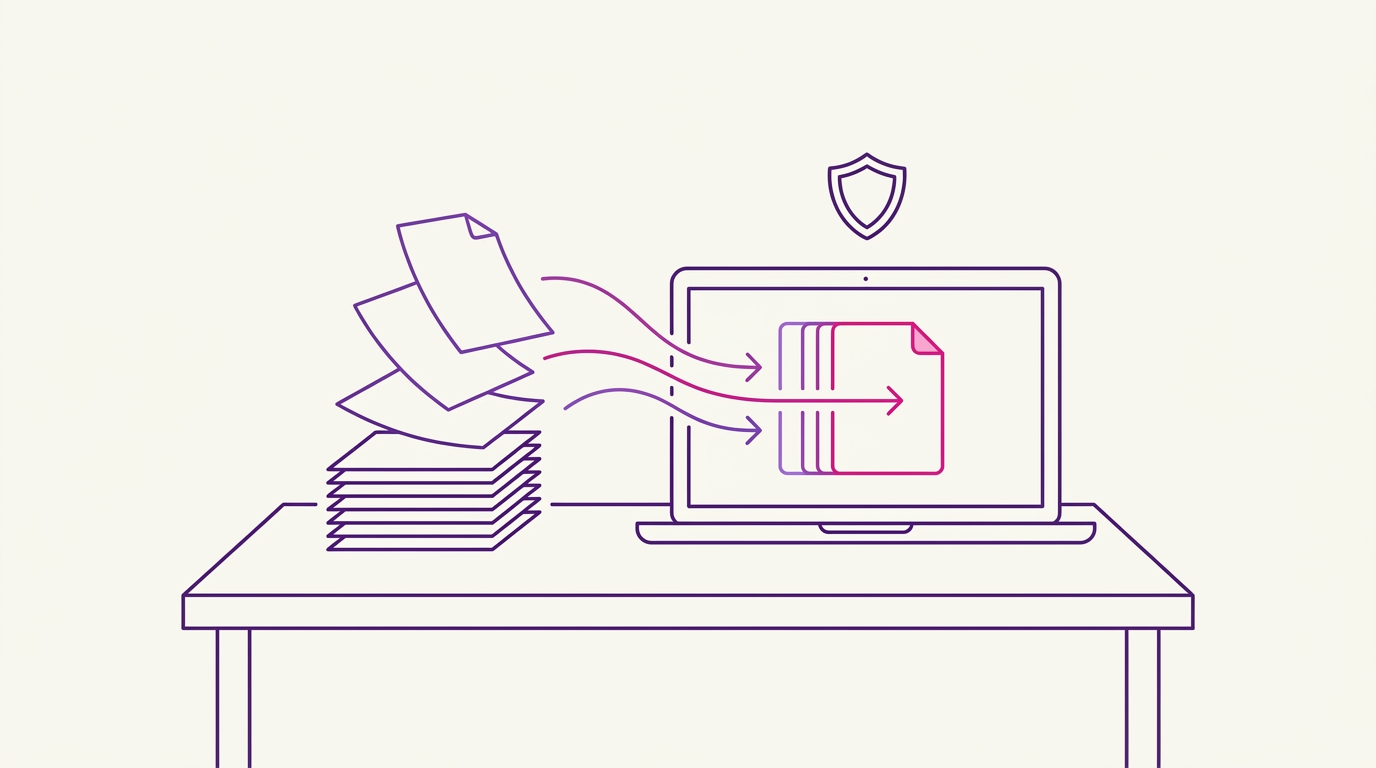
How to Combine PDF Files Without Uploading Them to a Server
You have a stack of PDFs — invoices, contracts, scanned forms, a report split across three exports — and you need them in one file. The usual advice is to search for an online merger, drop the files in, and download the result. That works, but it means your documents leave your machine and sit on somebody else’s server, if only for a few seconds.
This article walks through the other option: combining PDF files locally in your browser, with no upload step at all. By the end you will have merged, reordered, and (if you want) split a PDF without sending a single byte of it anywhere.
What Is Local PDF Processing and Why Should You Care?
Local PDF processing means the file never leaves your computer. The tool you use runs inside the browser tab you already have open — reading the PDF from your disk, doing the merge in memory, and handing the result back to you as a download.
Why does that matter? Because a cloud-based PDF merger often requires you to upload the file to a server, which is convenient but creates a data-handling risk. Once the file is on someone else’s infrastructure, you are trusting their retention policy, their access controls, and their logging. For a public brochure that is fine. For a signed contract, a payslip, or anything with personal data in it, it is an avoidable risk.
PdfMerge is a browser-based tool that processes PDFs entirely in the browser, so no upload occurs. Merging, sorting, rotating, deleting pages, splitting, and inserting text pages all happen on your side of the connection. That places it between the two extremes: it is not a desktop application you have to install and keep updated, and it is not a cloud service that wants a copy of your files.
The best part is that this claim is checkable rather than something you have to take on faith. PdfMerge sits between those two options. It gives you browser-based convenience without the upload step of a typical cloud merger. You do not need to install anything, and you can inspect the network behavior yourself. We cover that in more detail in How to Check If a PDF Tool Uploads Your Files.
Prerequisites
Before you start, make sure you have:
- A modern browser — Chrome, Edge, Firefox, or any current browser with support for modern web APIs.
- The PDF files you want to combine, in a folder you can find from a file picker.
- No installation. The web app runs as-is. Optionally, you can install the Chrome extension from the Chrome Web Store to reach the tool from your toolbar.
- A license if you need one. The free tier handles documents up to 100 pages. Larger documents, ZIP archives containing PDFs, and ZIP downloads of results require a Basic or Pro license.
- Basic familiarity with your file system, just enough to drag files into a browser window or pick them from a dialog.
Step-by-Step: Combine PDFs in Your Browser with PdfMerge
Step 1: Open the web app
Navigate to https://pdfmerge.rsj.de in your browser. Nothing is installed, nothing is registered, and no account is required for the free tier. The app loads as a single page.
If you prefer not to keep a tab around, the Chrome extension opens RSJ PDF Merge, Sort & Split from https://pdfmerge.rsj.de directly from the toolbar. The web app URL it uses is configurable on the extension’s options page, which is useful if you run the app on a different address.
Step 2: Add your PDF files
Drag the files you want to combine onto the drop area, or use the file picker to select them.
This is the point where a cloud merger would start uploading. Here, nothing leaves the device — the browser reads the selected files locally and renders thumbnails from them. If you want proof for your own peace of mind, record the checksums of your source files before you begin:
# Optional: fingerprint the source files before merging
shasum -a 256 ~/Documents/contracts/*.pdf
Keep that output around. We will compare it after the merge.
Step 3: Arrange files and pages
The thumbnail sidebar is where the actual work happens. You can:
- Reorder whole files by dragging one document above another.
- Reorder individual pages, including moving a page from one source document into the middle of another.
- Rotate pages that came in sideways from a scanner.
- Delete pages you do not want in the final document.
Order matters: the merged PDF follows the thumbnail order exactly, top to bottom. Fix the order here rather than after exporting.
Step 4: Insert text pages or split the document
Two extras are worth knowing about at this stage:
- Custom text pages can be inserted into the sequence — handy for a cover sheet, a section divider, or a short note between two merged documents.
- Splitting lets you break a document apart instead of combining it. That flow gets its own section below.
If your PDFs are packed inside a ZIP archive, that is a Pro feature and is described in How to Merge ZIP Archives of PDFs in Your Browser.
Step 5: Merge
Click the merge action. The result is generated locally in your browser — the page you are looking at does the work, not a backend job queue.
There is nothing to wait for in a queue and no “your file will be ready shortly” email. For a few hundred pages this is a matter of seconds.
Step 6: Save the result
Download the merged PDF to your computer. Basic and Pro license holders can also save the output as a ZIP of individual PDFs, and Pro additionally covers merging ZIP archives of PDFs as input.
Then re-run the checksum command from Step 2:
# The source files should be byte-identical to before
shasum -a 256 ~/Documents/contracts/*.pdf

# Confirm the downloaded result exists and has a sensible size
ls -lh ~/Downloads/merged-contracts.pdf
The hashes must match the earlier output. Your originals were read, not modified.
How to Split a PDF into Multiple Files in Your Browser
Splitting is the mirror image of merging, and it uses the same thumbnail sidebar. Because the document is already loaded locally, you do not need to upload it a second time to break it apart.
The workflow:
- Load the PDF you want to divide.
- In the thumbnail sidebar, identify the page boundaries where the new files should start.
- Remove or reassign the pages so each output document contains exactly what it should.
- Export the results as separate PDF files — Pro users can download them together as a ZIP rather than one at a time.
Typical use cases are splitting a combined bank statement into one file per month, separating a scanned bundle into individual forms, or pulling a single signed page out of a long contract. Since the whole operation runs in the browser, splitting a document that contains sensitive data carries the same data-handling profile as doing nothing at all: the file stays where it is.
How to Confirm the Merge Worked Without Uploading
Two separate things need checking: did the merge produce the right document, and did it happen locally?
Check the document:
- Open the merged PDF and confirm every page is present.
- Read through the page order — the sequence should match your sidebar arrangement.
- Check that nothing is rotated unexpectedly and no pages are missing from a source file.
- Compare the file size against the sum of the inputs. A merged file that is dramatically smaller usually means pages were dropped.
Check that nothing was uploaded:
- Open your browser’s developer tools, switch to the Network tab, and clear the log.
- Run the merge again.
- Watch the request list. During a merge that stays local, there should be no requests to an upload endpoint — only the requests needed to load the page’s own assets, which happen at load time rather than during the merge.
If you are comparing approaches more broadly, Browser-Based PDF Merger vs Desktop Software: Which Is Better? goes into the trade-offs between running the work in a tab and installing a dedicated application.
Troubleshooting Common Issues
The merge action is disabled. You almost certainly have fewer than two documents loaded. Check that both files were actually added — the sidebar should show thumbnails for each one.
The merge fails or pages are missing on a large document. You may be over the free tier’s 100-page limit. The Basic and Pro licenses lift that ceiling.
ZIP-related options are greyed out. Merging ZIP archives containing PDFs and downloading results as a ZIP are Pro features, not Basic ones. If you only need page-count removal, Basic is enough.
The Chrome extension does not respond. Open its options page and verify the web app URL is set correctly. The extension is a launcher for the app, so if the URL is wrong, nothing useful opens.
The merged PDF looks wrong. Do not start over. Reorder the pages in the thumbnail sidebar and merge again — re-running the merge after a reorder costs you seconds, and your source files are untouched.
A page came out sideways. Use the rotate control in the thumbnail sidebar before merging, not after. Rotation applied there is baked into the exported file.
FAQ
Do my PDFs get uploaded to a server when I use PdfMerge?
No. PdfMerge processes PDF files entirely in your browser. The files are never uploaded to a server. You can verify this by checking network activity in your browser’s developer tools.
Can I merge PDFs on a mobile device?
PdfMerge is a web app that runs in modern browsers. While it is designed for desktop use, it may work on mobile browsers, but the drag-and-drop interface is optimized for larger screens.
What is the page limit for the free version?
The free version supports documents with up to 100 pages. Paid licenses (Basic and Pro) lift this limit and unlock additional features like ZIP support.
How do I merge ZIP archives of PDFs?
Merging ZIP archives containing PDFs is a Pro feature. You can upload a ZIP file, and PdfMerge will extract and merge the PDFs inside. See the article How to Merge ZIP Archives of PDFs in Your Browser for details.
What does a license cost?
Basic — merge, view, sort, remove, split — is €2.99/month, €19.99/year, or €49.99 as a lifetime purchase. Pro adds ZIP input and ZIP output for €3.99/month, €29.99/year, or €69.99 lifetime. Enterprise covers white-label integration into your own website or product; contact sales for that.
Conclusion
Combining PDF files without uploading them is not a workaround — it is the default behavior of a tool built to process documents in the browser. You open a page, drag your files in, arrange the pages, merge, and download. The files stay on your disk the whole time, and you can confirm that with the browser’s own network inspector rather than trusting a privacy policy.
PdfMerge handles the whole flow — merging, sorting, rotating, removing pages, splitting, and inserting text pages — with a free tier that covers documents up to 100 pages. If you regularly merge larger documents or want ZIP support, the lifetime licenses are the simplest way to stop thinking about limits.
Open PdfMerge and merge your first set of PDFs — it takes about a minute, and nothing leaves your machine.
Related posts
- Automate Merging PDFs You Download in Chrome
- Best PDF Combiner Compared to Adobe: What Actually Matters
- How to Merge ZIP Archives of PDFs in Your Browser
