
Merge ZIP Files Containing PDFs Into One Document
Every month, the same ZIP lands in your inbox: a dozen PDFs, named by whoever exported them, packed into one archive. And every month, someone opens the archive, extracts it into a folder, opens each PDF, drags them into a merger one by one, exports, renames the result, and deletes the extraction folder — only to do it all again next month with a slightly different set of files.
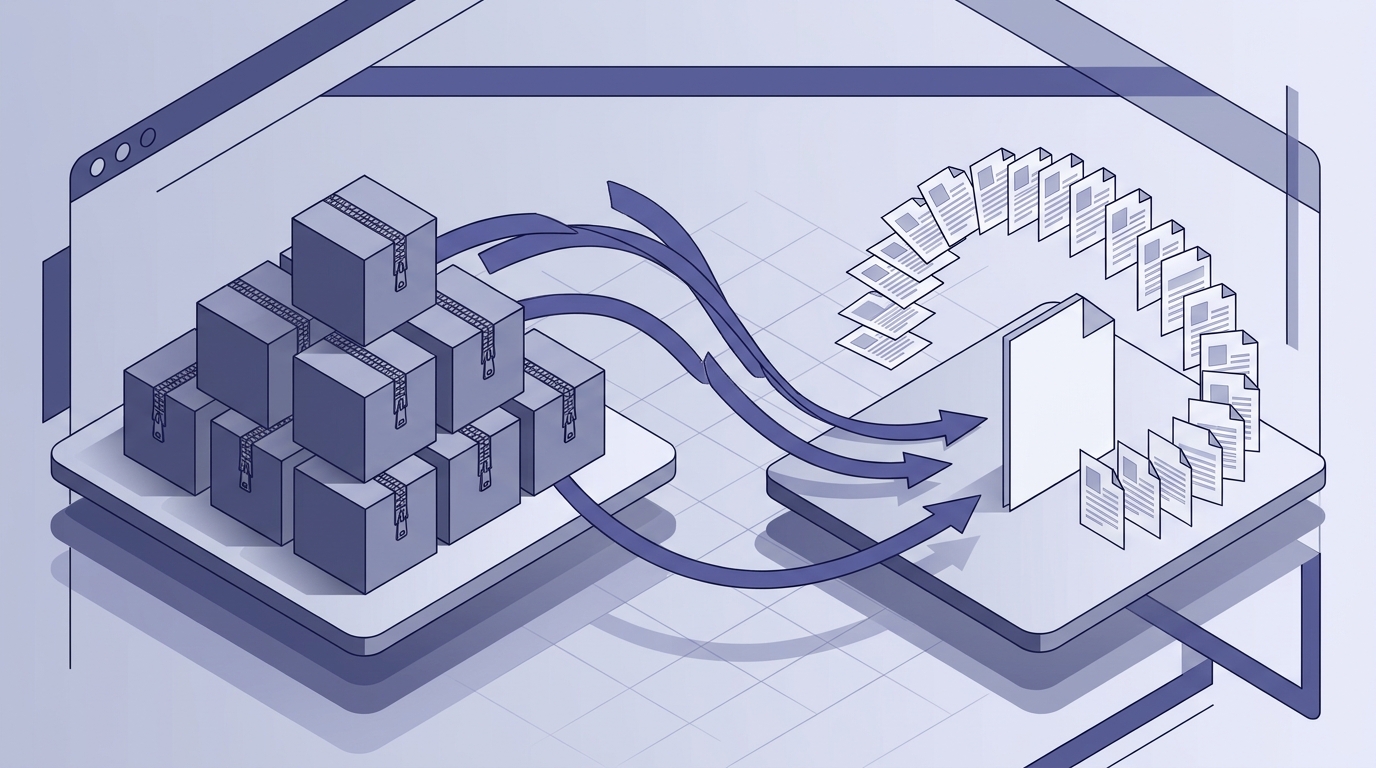
This article is about turning that into a repeatable pipeline: a ZIP goes in, one document comes out, and the whole thing runs in your browser without an extraction step, an install, or an upload. Merge ZIP files containing PDFs into one document — every time, the same way.
Why Manual ZIP-to-PDF Merging Wastes Your Time
The manual cycle is short enough to feel harmless and long enough to break your focus:
- Download the ZIP from email, a shared drive, or a customer portal.
- Extract it somewhere — usually the Downloads folder, which is now a mess.
- Open the PDFs to confirm which ones actually belong together.
- Drag them into a merger one at a time, in the right order.
- Export, then rename the output to something a human can read.
- Clean up the extracted files.
For a one-off, that’s five minutes. For monthly reports, archived invoices, or a batch of signed contracts per client, it’s five minutes multiplied by every batch, every month — and it’s five minutes in which you’re not doing the work you’re actually paid for.
The hidden costs are worse than the clock time:
- Context switching. Each step pulls you out of whatever you were doing; by the time you return, you’ve lost the thread.
- Inconsistent naming.
report_final.pdf,report_final_v2.pdf,report FINAL (1).pdf— the archive becomes its own archaeology project. - Silent omissions. A file that never made it into the ZIP, or one you skipped while dragging, produces a merged document that looks fine and is quietly incomplete.
- Order drift. Page order depends on who dragged what. Next month it’ll be different again.
Automation fixes all four, because a repeatable workflow produces a repeatable result. And crucially, this kind of automation doesn’t require a server, a script to maintain, or a subscription — PdfMerge accepts ZIP archives of PDFs directly and does the work in the browser, which means the convenience doesn’t cost you privacy. We’ll come back to that below; there’s a whole article on it: What Is Local PDF Processing and Why Should You Care?.
One-Time Setup: Prepare Your Browser for ZIP Merging
Setup here is genuinely a one-time thing, and it’s short.
- Open the editor. Go to
https://pdfmerge.rsj.dein a modern browser. No account, no install, no licence key. - Know your tier. The free version supports documents with up to 100 pages. The Pro version removes that page limit and adds
.ZIPsupport, which is the tier you want if your workflow starts from an archive. - Pick your language if you need one. The editor ships in English, German, Spanish, French, Italian, Portuguese and Chinese.
- Optional: install the Chrome extension. It puts the editor one click away in your toolbar. The extension opens RSJ PDF Merge, Sort & Split from
https://pdfmerge.rsj.de, and if you already have an editor tab open it reuses that tab instead of spawning a new one. The editor URL is configurable in the extension’s options page, which matters if you self-host. - Nothing else. There’s no server-side configuration, no API key to provision, no upload folder to create. The files stay in the browser. Just have the ZIPs at hand.
One useful habit at this stage: decide where the output will live before you start. If your source archives are on Google Drive, PdfMerge can open a file from Drive using Google’s picker and save the result back — so the whole loop can stay in one place.
The Automated Pipeline: From ZIP to Single PDF in One Flow
Once the setup is done, the pipeline is three steps and doesn’t change between batches.
Step 1 — Drop the archive in. Drag your ZIP archive (or several) straight into the editor. PdfMerge accepts ZIPs of PDFs and unpacks them in the browser, so there’s no extraction folder and no cleanup. If you’re on the free tier, run the same flow against individual PDFs — the rest of the pipeline is identical.
Step 2 — Order the pages, not the files. The page overview shows every page from every PDF in the archive. Use Ctrl/Cmd+click to select individual pages or Shift+click to select a range, then move, rotate, duplicate or delete the selection as a group. Page provenance shows which file and which page each item came from, so when two documents both have a “page 3” you can tell them apart at a glance.
Step 3 — Export. Choose a single merged PDF when you want one document, or split into parts (next section) when the output needs structure. The export happens locally and downloads immediately. You can also export a ZIP of all parts, or print directly.
For context: the “hard way” is scripting extraction and merging with command-line tools — possible, but it means maintaining a script, handling filenames with spaces, and hoping the archive structure never changes. PdfMerge gives you the same result in one step. For a broader look at no-install workflows, see How to Merge PDF Files Without Installing Any Software.
How to Split a PDF into Multiple Files in Your Browser
Merging everything into one document isn’t always the right output. A 400-page batch of client invoices is easier to distribute as one PDF per client — and splitting is where the same editor earns its keep.
In PdfMerge, each part is its own output PDF: it gets a title line, a name of your choice, and its own save and print button. You build parts by dragging pages between them, and you can do it from the keyboard too — Space to pick up a page, arrow keys to move it, Space to drop it. That matters when you’re sorting 80 pages and don’t want to keep reaching for the mouse.
A practical pattern for recurring batches:
- Merge the whole ZIP into a single working document so you can see everything in order.
- Create one part per logical unit — customer, month, department, whatever your archive maps to.
- Drag the relevant pages into each part and give each one a real title.
- Export one PDF per part, or a single ZIP of all parts.
You also get duplicate pages, custom text pages for cover sheets, colour bookmarks for marking sections, undo/redo on every edit, a page viewer, light and dark themes, and resizable panes — the small things that make a 40-page sort bearable.
Monitoring and Failure Handling in Your ZIP Merge Workflow
There’s no server job to poll here, so “monitoring” means verifying the output before you distribute it. Two checks cover almost everything:
- Page count. Compare the merged document’s page count against the number of pages you expected from the archive.
- Page order. Flip through the first and last pages of each source file’s section. Provenance makes this fast: you can see which file and page each page came from, and if you attach provenance on export, that information travels with the output and is restored the next time the PDF is opened in PdfMerge.
Common failure points, and how to catch them before you start:
- Corrupted ZIPs. If an archive won’t unpack, re-download it rather than working around it — a partial archive produces a silently short merge.
- Password-protected PDFs. Check for lock icons before you start a batch; a protected file can’t contribute readable pages.
- Mixed page sizes and orientations. Landscape scans next to portrait letters look wrong in the final document. Skim the page viewer before exporting and use rotation on the outlier pages.
When something goes wrong mid-sort, don’t restart the batch. Undo/redo is available on every edit, and the page viewer lets you confirm the fix immediately. For recurring batches, keep a small checklist next to the archive:
# batch-checklist.yaml — one per recurring batch
batch: 2026-10-reports
source_zip: reports-2026-10.zip
expected_pdfs: 12
expected_pages: 96
output: merged.pdf
provenance: attached
spot_check: first page of first and last PDF
What Is Local PDF Processing and Why Should You Care?
A cloud-based PDF merger often requires you to upload the file to a server, which is convenient but creates a data-handling risk. Someone else’s infrastructure now holds your invoices, contracts or medical records, and you’re trusting a retention policy you probably haven’t read. Desktop software avoids the upload but adds installs, updates and platform lock-in.
PdfMerge sits between those two options. It gives you browser-based convenience without the upload step of a typical cloud merger. You do not need to install anything, and you can inspect the network behavior yourself. PDFs are processed entirely in the browser and are never uploaded — which is what makes it reasonable to automate a workflow around client documents in the first place.
For a deeper comparison of browser-based and desktop workflows, see the article Browser-Based PDF Merger vs Desktop Software: Which Is Better?.
Best Practices for Repeatable ZIP-to-PDF Merging
- Standardise the archive structure. One folder per batch, one PDF per logical unit, consistent file naming with a sortable prefix (
2026-10-client-a.pdf). Predictable input makes drag-and-drop order predictable, which makes the output predictable. - Attach provenance on export. It costs nothing and gives you an audit trail: every page keeps the file and page it came from, and that metadata is restored when the exported PDF is reopened.
- Split deliberately. Don’t distribute a 400-page monolith when three titled parts with custom names would do the job.
- Keep the extension close. One click from the toolbar, reusing an open editor tab; configure the editor URL in the options page if you’re running a self-hosted instance.
- Use Drive as the hand-off point when the archive and the recipient live there — open from Drive, save back to Drive.
- Bookmark by colour for recurring batches with fixed sections, so the same page groups are visually obvious every month.
When to Move Beyond Manual Merging: SDK and Team Workflows
If ZIP-to-PDF merging is part of a product or an internal tool — a client portal that ingests document bundles, a back-office app that assembles monthly packs — the browser workflow is still the reference implementation, but you’ll want it embedded rather than bookmarked.
That’s what the SDK is for. @rsj-de/pdfmergesortsplit embeds the same editor into another web app; documents are still processed in the visitor’s browser. There are two levels: PDFMergeSortSplitClass for any framework, and <PDFMergeSortSplit> plus usePdfMergeSortSplit() for React.
npm install @rsj-de/pdfmergesortsplit
import { PDFMergeSortSplitClass } from '@rsj-de/pdfmergesortsplit';

const editor = new PDFMergeSortSplitClass({
  target: document.querySelector('#pdf-editor'),
  // title, icon, hidden UI parts, injected buttons, provenance attachment
  // and the licence are configured here — full option list in the docs
});
import { PDFMergeSortSplit, usePdfMergeSortSplit } from '@rsj-de/pdfmergesortsplit';

export default function MergePanel() {
  // The hook gives you the low-level API: load documents, read pages and
  // their provenance, export one part or everything, react to export events.
  const api = usePdfMergeSortSplit();

  return (
    <>
      {/* Wire your own buttons to api here. */}
      <PDFMergeSortSplit />
    </>
  );
}
Practical notes before you start:
- Test mode is free and unrestricted. Every feature works; a banner marks the unlicensed embedding. A licence token removes it, so you can build and demo the whole integration first.
- Licensing is per integration and volume, not per page, so a high-volume batch job doesn’t get more expensive per document.
- Self-hosting is available to customers with an offline licence.
- Samples exist for both paths: the GitHub repository at
https://github.com/pdfmergesortsplit/pdfmergesortsplitcontains a React sample (sdksample) and a plain JavaScript sample (sdksimple). Documentation lives athttps://pdfmerge.rsj.de/docs, covering getting started, configuration, the low-level API, the React API, provenance, Google Drive setup, licences and self-hosting.
For licensing questions, the contact address is info@rsj.de.
FAQ
Can I merge ZIP files containing PDFs without extracting them first?
Yes. PdfMerge accepts ZIP archives of PDFs directly — drag and drop the ZIP into the editor and it unpacks the PDFs in your browser, ready to merge. No manual extraction needed.
Is there a page limit when merging PDFs from ZIP files?
The free version supports documents with up to 100 pages. The Pro version supports unlimited pages and .ZIP files. Check the current offering on the site for details.
Are my PDFs uploaded to a server when I merge ZIP files?
No. PdfMerge processes everything locally in your browser; files are never uploaded. You can even inspect network activity to confirm no upload requests occur.
Can I automate ZIP-to-PDF merging for recurring batches?
For occasional batches, the web app’s drag-and-drop workflow is fast. For recurring or product-integrated needs, the SDK lets you embed the editor and trigger merges programmatically from your own app.
Conclusion
The repetitive part of ZIP-to-PDF merging was never the merging — it was the extraction, the opening, the renaming and the cleanup around it. Remove those and you’re left with a three-step pipeline that produces the same output every time: drop the archive, order the pages, export.
Start at pdfmerge.rsj.de with your next batch: drag the ZIP in, use provenance to confirm every file made it, and export a single merged PDF or a set of titled parts. If the batch is monthly, keep the checklist and the naming convention — next month it’ll take two minutes instead of twenty.
Related posts
- What Is Local PDF Processing and Why Should You Care?
- Is a Lifetime PDF Merger License Worth It?
- How to Merge PDF Files Without Installing Any Software
