
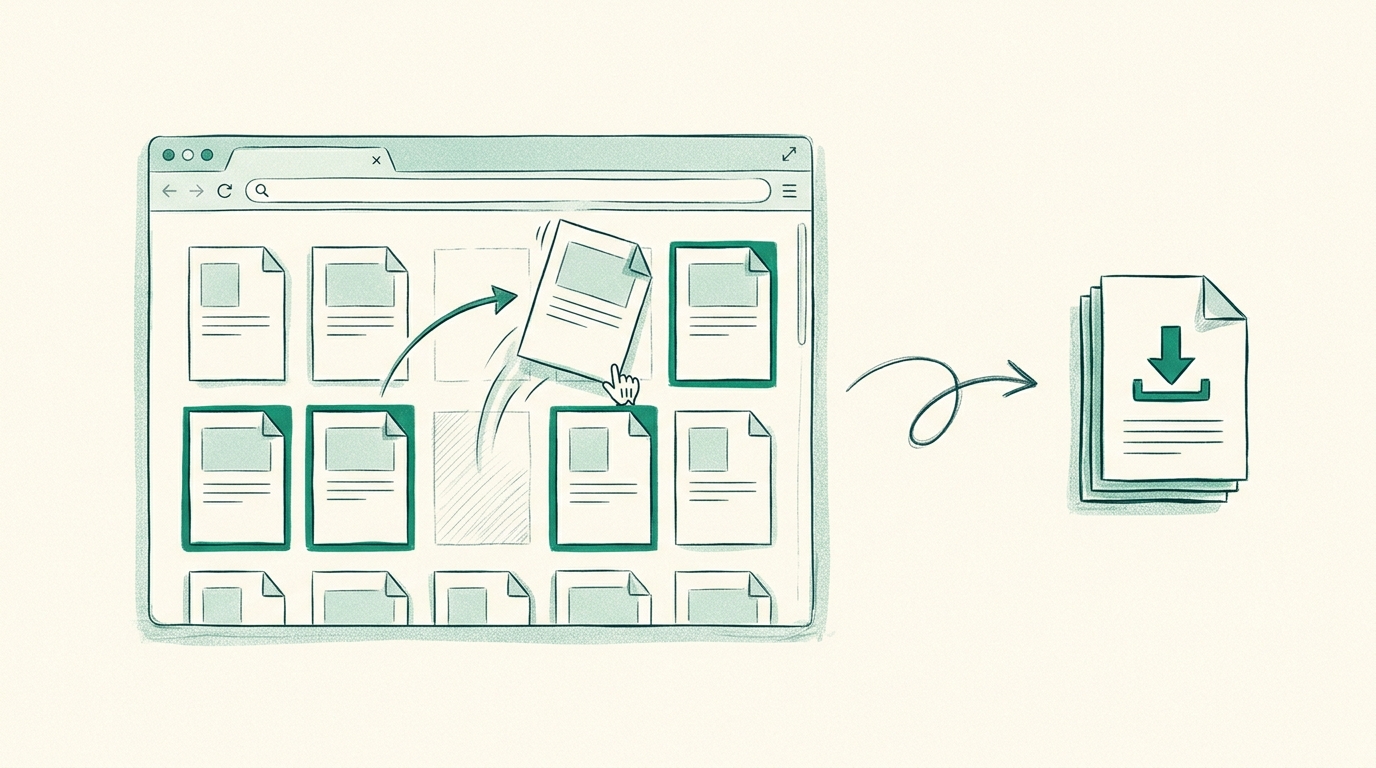
How to Reorder PDF Pages by Drag and Drop in the Browser
You have a PDF with the right pages in the wrong order. Maybe the scanner fed page 12 after page 34, maybe three departments sent you three reports that need to become one document in a specific sequence, or maybe the handouts for your talk are one page off from the slide deck.
The task in this article is narrow and concrete: reorder PDF pages by drag and drop, in the browser, without installing anything and without uploading the file to a server. We’ll do it end to end with RSJ PDF Merge, Sort & Split — including multi-select, rotation, splitting into parts, export, and a verification pass before you send the result to anyone.
Why Reorder PDF Pages in the Browser?
The three cases that come up most often:
- Scanned bundles with shuffled pages. Feeder scanners and phone-scan apps preserve capture order, not document order. The signature page belongs at the end, not at position 41.
- Reports assembled from several sources. A quarterly report might be a finance PDF, a legal appendix, and a cover memo — merged, then sorted into the order the reader expects.
- Presentation handouts. Slides exported to PDF, then rearranged into a leave-behind sequence with notes pages interleaved.
A cloud-based PDF merger often requires you to upload the file to a server, which is convenient but creates a data-handling risk. Desktop software avoids the upload but adds an install, a licence, and a machine-specific workflow that breaks the moment you’re on a borrowed laptop.
What Is Local PDF Processing and Why Should You Care?
Local PDF processing means the file is read, rearranged, and written by code running in your own browser tab — on your device — rather than shipped to a document-processing server first. You care because contracts, medical paperwork, and internal reports don’t need a round trip through someone else’s storage just to swap two pages. It also means the tool works the same on any machine with a modern browser, with nothing to install or activate.
PdfMerge sits between those two options. It gives you browser-based convenience without the upload step of a typical cloud merger. You do not need to install anything, and you can inspect the network behavior yourself. If you want to actually check that claim rather than take it on faith, the walkthrough in How to Verify a PDF Merger Doesn’t Upload Your Files shows what to look for.
RSJ PDF Merge, Sort & Split is free, needs no account and no licence key, and adds no watermark. There’s also a Chrome extension for toolbar access: one click, and the extension opens RSJ PDF Merge, Sort & Split from https://pdfmerge.rsj.de, reusing an already open editor tab instead of spawning another one. The editor URL is configurable in the extension’s options page.
Prerequisites: What You Need Before You Start
- A modern browser. Chrome, Firefox, Edge, or Safari.
- The PDF (or PDFs) you want to reorder, saved on your device — or in Google Drive, since the app can open files from Drive and save the result back.
- No account, no licence key, no installation for the free web app.
- Optional: the Chrome extension if you want a toolbar button instead of a bookmark.
- Page budget: the free version supports documents with up to 100 pages. Pro removes that limit and adds
.ZIPsupport for importing and exporting bundles of PDFs.
The interface is available in English (default), German, Spanish, French, Italian, Portuguese, and Chinese — the language switch is in the app, not a separate URL.
Step-by-Step: Reordering PDF Pages with Drag and Drop
Step 1: Open the editor
Navigate to https://pdfmerge.rsj.de. If you’d rather launch it from a terminal:
# macOS
open https://pdfmerge.rsj.de

# Linux
xdg-open https://pdfmerge.rsj.de
# Windows (PowerShell)
Start-Process https://pdfmerge.rsj.de
Nothing is installed. The editor loads in the tab and waits for a document.
Step 2: Load your PDF
Drag the file from your file manager onto the page, or use the file dialog to pick it. Two things worth knowing:
- You can drop several PDFs at once. They’re merged into a single working document, and you then sort pages across the combined set — which is exactly what you want when assembling a report from three sources.
- With the Pro version you can also drop a
.ZIParchive of PDFs and have its contents imported in one go.
If your files live in Google Drive, open one with Drive’s picker and add more files the same way. The result can be saved back to Drive at the end.
Every loaded page keeps its provenance — the file and page number it came from — which we’ll use later during verification.
Step 3: Drag pages to reorder them
Grab a page thumbnail and drop it where it belongs. The remaining pages close the gap and the document renumbers immediately.
For bulk moves, multi-select first:
Ctrl + click  (Windows/Linux)  -> add or remove a single page from the selection
Cmd  + click  (macOS)          -> same
Shift + click                  -> select a continuous range of pages
With several pages selected, one drag moves the whole group. The same selection also drives rotation, duplication, and deletion in the next step — so the modifiers are worth committing to muscle memory.
If precise dragging is awkward, use the keyboard instead: Space picks up the focused page, arrow keys move it, Space drops it.
Step 4: Rotate, duplicate, or delete the selected pages
Use the toolbar to act on your selection:
- Rotate sideways scans that arrived landscape.
- Duplicate pages you need twice — cover sheets, signature pages, blank separators.
- Delete pages that shouldn’t ship: the fax header, the duplicate scan, the blank back side.
- Insert custom text pages as dividers or section headers.
- Bookmark pages by colour to mark “needs review” or “move to part 2” while you work.
Undo and redo cover every edit, so an accidental move is a keystroke away from being reversed. The page viewer, resizable panes, and light/dark theme are there to make long documents less tiring on a laptop screen.
Step 5 (optional): Split into parts with their own titles
If the final deliverable is several files rather than one, switch to splitting. Each part is its own output PDF with a title line, a name of your choice, and its own save and print buttons.
- Drag pages between parts to assign them.
- The keyboard works here too: Space to pick up, arrow keys to move, Space to drop.
- Parts can be renamed so the exported filenames are meaningful instead of
part-1.pdf.
For a focused treatment of that path, see How to Split a PDF into Multiple Files in Your Browser, and the title-specific details in How to Split a PDF into Separate Files with Their Own Titles.
Step 6: Export
Pick the output that matches your intent:
- One merged PDF — the reordered document as a single file.
- One PDF per part — when you split in Step 5.
- A ZIP of all parts — one download for a multi-file deliverable (Pro).
- Print — straight to a printer or a system “Save as PDF”.
Optionally write page provenance into the exported PDF. It’s embedded as metadata and restored the next time that PDF is opened in the editor, so the source file and original page number survive a round trip through a colleague.
How to Confirm the Reorder Worked
Before exporting, scan the sequence in the page viewer — thumbnails in order beat reading forty pages of prose. Then verify the artefact:
- Open the exported PDF in a viewer and check that the page order matches your intended sequence.
- Confirm the first and last pages are what you expect; off-by-one errors usually show up at the edges.
- If you split into parts, open each part and check the title line and that it contains exactly its assigned pages.
- Reopen a provenance-carrying export in the editor and confirm the source file and page numbers still map correctly.
- If something is off, undo in the editor rather than editing the export — the original working document is still there.
Troubleshooting Common Issues
- A page won’t drag. Make sure you’re grabbing the thumbnail, not the page content inside the viewer. Select the page first with a single click, then drag.
- Multi-select isn’t working. Use
Ctrl+click (orCmd+click on macOS) for individual pages andShift+click for a range. Clicking without a modifier resets the selection — which is the usual culprit. - The export fails or crawls. Very large documents can hit browser memory limits. Split the work into smaller parts, or move to Pro for unlimited pages and ZIP handling.
- Drag and drop is physically awkward. Switch to keyboard: Space to pick up, arrow keys to move, Space to drop.
- The order looks wrong in the export. Check whether you were scrolled to a part rather than the whole document; pages can live in different parts and export in part order.
- A shared machine, no files. Sign in to Google Drive, open the file with the Drive picker, and save the result back — nothing needs to touch local disk.
FAQ
Do I need to create an account to reorder PDF pages?
No. RSJ PDF Merge, Sort & Split is free and requires no account, licence key, or watermark. Just open the site and start reordering.
Can I reorder pages from multiple PDFs in one go?
Yes. You can merge multiple PDFs (or import a ZIP of PDFs with the Pro version) and then drag pages to reorder them across the combined document.
What happens to the original file after I reorder pages?
The original file on your device is not modified. The editor works on a copy in your browser’s memory; you export a new PDF with the new order.
Is there a limit on the number of pages I can reorder?
The free version supports documents up to 100 pages. The Pro version removes this limit and also supports ZIP files.
Conclusion
Reordering PDF pages is a two-minute job once the mechanics are clear: load the file, drag thumbnails (with Ctrl/Cmd+click and Shift+click for groups), use the keyboard when the mouse is fighting you, split into parts if the output needs to be several files, then export and verify against the page viewer. No install, no upload, no watermark.
Open PdfMerge and try it on the document that’s been sitting in your downloads folder with the pages out of order — the whole workflow happens in one tab. If you’re comparing approaches first, Browser-Based PDF Merger vs Desktop Software: Which Is Better? lays out the trade-offs.
Related posts
- Embed a PDF Merge and Split Editor in a React App
- A PDF Merger Built for People Drowning in Scanned Paperwork
- How to Verify a PDF Merger Doesn’t Upload Your Files
