
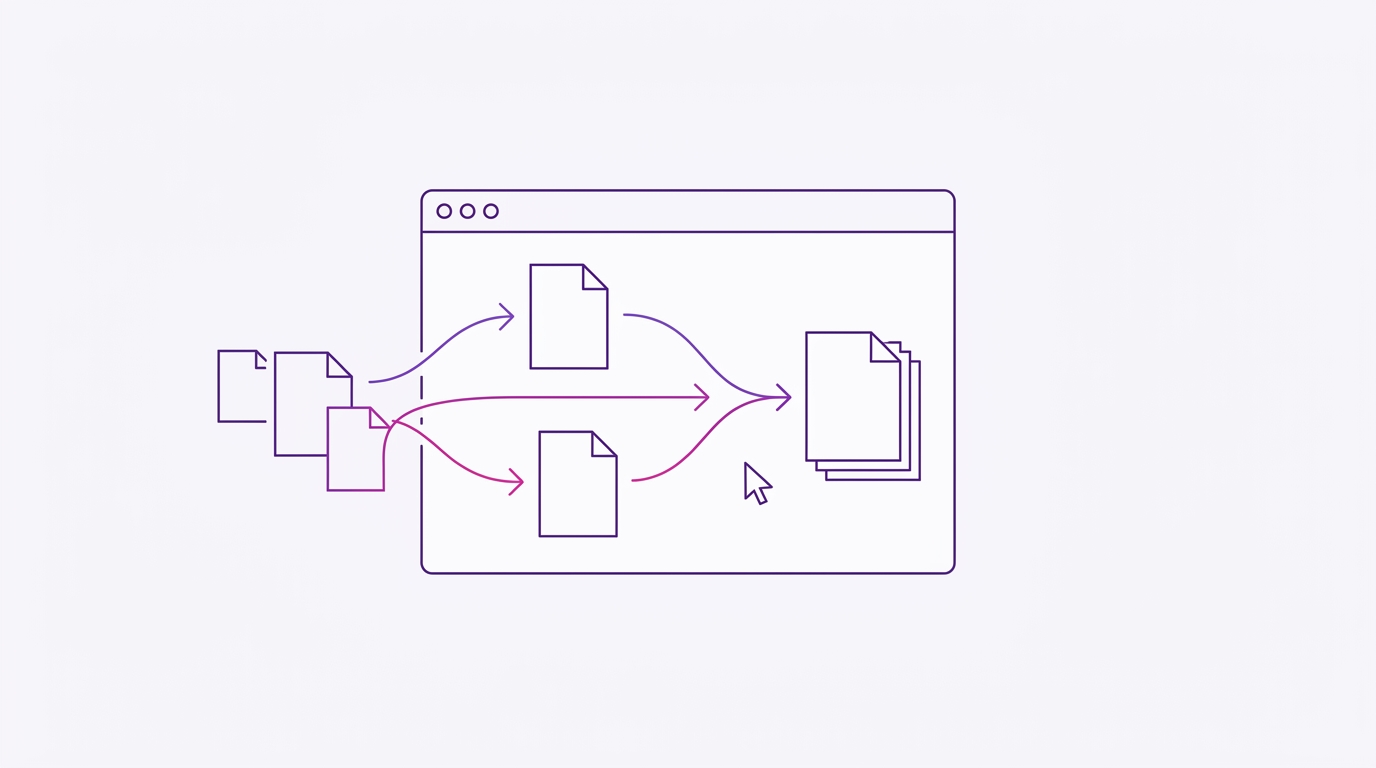
How to Merge PDF Files Without Installing Any Software
You have a stack of PDFs that need to become one file: a cover letter, a signed contract, and a 27-page appendix. The usual advice is “install a PDF tool,” except the machine is a locked-down work laptop, a borrowed Chromebook, or a tablet — and you do not want another desktop app anyway. Merging PDFs is not a job that requires installed software in 2026. A modern browser can do it, and it can do it without shipping your documents to someone else’s server.
This guide walks through the exact task: how to merge PDF files without installing software, using RSJ PDFMerge — a browser-based PDF tool that merges, sorts, rotates, and splits documents entirely on your device. No installer, no admin rights, no upload.
By the end you will have one merged PDF, plus a way to check that every page survived the trip in the right order.
What Is Local PDF Processing and Why Should You Care?
Local processing means the work happens inside the browser tab you already have open. When you drag files into PDFMerge, the page reads them with browser APIs and assembles the output in memory on your machine. Nothing is transmitted to a backend for processing.
Why does that matter? Because the alternative is a trade-off you may not want to make:
- Cloud PDF mergers run on a server. A cloud-based PDF merger often requires you to upload the file to a server, which is convenient but creates a data-handling risk — contracts, invoices, medical letters, and client records leave your device and land in a bucket you do not control.
- Desktop software keeps files local but demands installation, updates, and often administrator approval.
PdfMerge sits between those two options. It gives you browser-based convenience without the upload step of a typical cloud merger. You do not need to install anything, and you can inspect the network behavior yourself.
If you want the longer version of that comparison, see Browser-Based PDF Merger vs Desktop Software: Which Is Better?.
Prerequisites: What You Need Before You Start
Short list — this is not a setup article:
- A modern browser. Chrome, Firefox, Edge, or Safari. The app is a web page, so the only thing you download is the page itself (which needs an internet connection the first time it loads).
- Your PDF files, on your device. Local disk, a USB stick, a mounted share — anything the browser’s file picker can reach.
- No account. Basic merging works without signing in. Paid features are unlocked with a license.
- Optional: the Chrome extension. The extension opens RSJ PDFMerge, Sort & Split from
https://pdfmerge.rsj.dein a tab, so you can get to the app without hunting for the bookmark. Its options page also lets you point the extension at a different web app URL if you host your own copy — relevant for Enterprise white-label setups. - Page budget awareness. The free tier handles documents up to 100 pages total (source pages plus anything you add). Larger jobs need a paid license.
Step-by-Step: Merge PDFs in Your Browser with PDFMerge
Step 1: Open the web app
Point your browser at https://pdfmerge.rsj.de. If you would rather launch it from a terminal, that works too:
# macOS
open https://pdfmerge.rsj.de

# Windows (PowerShell)
Start-Process https://pdfmerge.rsj.de

# Linux
xdg-open https://pdfmerge.rsj.de
No installation, no elevation prompt, no reboot. The app loads in a tab and stays there as long as you need it.
Step 2: Add your PDF files
Drag the files from your file manager and drop them anywhere on the interface, or use the file picker if you prefer clicking. You can add them in any order — you will fix the sequence in the next step.
If you are using the Chrome extension, this is where it saves you time: with a PDF open in the active tab (either a direct link to a PDF or a PDF embedded in the page), the extension hands that document straight to the app, so you skip the download-then-re-upload shuffle.
Step 3: Arrange files in the order you want
The order of the file list becomes the order of the merged document. Decide the sequence before you merge, because it is much easier than reordering 40 thumbnails afterwards. Write it down first if the pack has a required structure:
1. 00-cover-letter.pdf
2. 01-signed-contract.pdf
3. 02-appendix-a.pdf
4. 03-appendix-b.pdf
Move files up and down in the list until it matches that plan.
Step 4: Fine-tune pages in the thumbnail sidebar
The thumbnail sidebar is where this stops being a dumb concatenation and becomes actual document assembly. Per page, you can:
- Reorder by dragging a thumbnail to a new position.
- Rotate a page that was scanned sideways.
- Delete a blank page, a duplicate cover sheet, or a client-facing page that should not be in the final pack.
- Insert a custom text page — useful for a section divider or a short note between documents.
Work document by document rather than page by page. Rotating a mis-scanned attachment is a two-second fix now and an embarrassing one after you have sent the file.
Step 5: Merge
Trigger the merge. The app combines everything in the sidebar into one continuous document, in the order shown.
A note on output options: you can save the result as a single PDF on the free tier. Paid Pro licenses also let you merge ZIP archives that contain PDFs and download a ZIP of individual PDFs instead of one combined file — handy when you are processing a batch rather than producing a single deliverable.
Step 6: Download the result
Save the merged PDF to your device and give it a name that will make sense in three weeks, e.g. 2026-10-27_client-pack_final.pdf. That is the whole workflow: no installer, no sign-up wall, no upload progress bar.
How to Confirm the Merge Worked
Thirty seconds of checking beats resending a broken document. Open the downloaded file and confirm:
- Page count. The total should equal the sum of your sources. Three files of 3, 12, and 27 pages should yield 42. Any viewer’s page indicator shows this at a glance.
- Order. Jump to the first page of each source document and confirm it lands where you expect. If the contract starts on page 4, you are in the right place.
- Orientation. Scroll through for sideways pages, especially if any source was a scan. Rotation fixes applied in the sidebar should be baked in.
- Content integrity. Check that no page got clipped or dropped — look at the last page of each section, not just the first.
- Open it elsewhere. If the file is going to a client, open it in a second viewer (or on a phone) to rule out a rendering surprise.
If any of that looks wrong, reopen the app, re-add the sources, adjust the sidebar, and merge again. Because nothing was uploaded, there is no stale server-side copy to clean up — you just redo the local operation.
How to Split a PDF into Multiple Files in Your Browser
The same tool runs the operation in reverse, which is useful when you receive a 200-page scan and only need one section. Here is how to split a PDF into multiple files in your browser:
- Open
https://pdfmerge.rsj.deand add the single PDF you want to break apart. - Use the thumbnail sidebar to identify the page ranges you want to keep — for example pages 1–12 as one file and 13–40 as another.
- Apply the split, removing or isolating pages as needed.
- Download the results. Pro licenses can download a ZIP of the resulting PDFs in one go; otherwise save each output individually.
Splitting is also a good recovery move for the page limit: if a job is over 100 pages on the free tier, splitting it into logical chunks first can keep you inside the free allowance.
Troubleshooting Common Issues
The merge action is unavailable. You need at least two files in the list. A single PDF has nothing to merge into — use the split path instead.
You hit the 100-page ceiling. The free tier covers documents up to 100 pages. Beyond that, a paid license lifts the limit and unlocks the ZIP features. If you are evaluating costs for a team, the small-office pricing comparison covers the tiers.
A file will not load. Most often it is password-protected or corrupted. Remove the password protection in your PDF viewer first, or re-export the file from its source application. The tool cannot merge what the browser cannot read.
The tab gets sluggish with huge files. Very large documents consume a lot of memory because everything is processed locally. Merge in batches — combine five files, download, then merge the results — rather than dropping 40 files in at once.
You cannot tell whether the file was uploaded. That is a reasonable question, and it has a concrete answer. The privacy-check walkthrough explains how to inspect a tool’s network behavior yourself.
FAQ
Is it safe to merge PDFs in my browser?
Yes, when using a tool like RSJ PDFMerge that processes files entirely in your browser. Your PDFs are never uploaded to a server, so your data stays on your device.
Can I merge PDFs on a computer without admin rights?
Absolutely. Since PDFMerge runs in your web browser, you don’t need to install anything or have admin rights. Just open the web app and start merging.
What is the page limit for free merging?
The free version of PDFMerge supports documents with up to 100 pages. For unlimited pages and additional features like ZIP file handling, you can purchase a license.
Does PDFMerge work on mobile devices?
PDFMerge is a web app that works in modern mobile browsers, though the drag-and-drop interface is optimized for desktop. You can still merge PDFs on a tablet or phone with some limitations.
Do I need to install the Chrome extension to merge PDFs?
No. The extension is a convenience layer, not a requirement. The web app does everything on its own; the extension just captures the PDF you are already looking at and hands it to the app.
Conclusion
Merging PDFs stopped being a software problem a while ago. It is a browser problem, and browsers solved it. Open https://pdfmerge.rsj.de, drop in your files, arrange the thumbnails, merge, download — and because the processing happens locally, you never have to think about where your documents went. Free covers up to 100 pages; Basic and Pro licenses lift that limit and add ZIP merging and ZIP export when you are handling batches rather than single deliverables.
If you have been putting off a merge because installing something felt like too much overhead, you now have the shorter path. Open PDFMerge and merge your files in the tab you already have open.
Related posts
- How to Merge PDFs Without Uploading Them to a Server
- Cheapest Way to Merge and Split PDFs for a Small Office
- How to Check If a PDF Merger Keeps Your Files Private
